
20 practical ways to edit videos faster in Premiere Pro
Twenty concrete Premiere Pro time-savers using reusable MOGRTs, saved B-roll, sound libraries, clipboard images, auto reframe, silence removal, and Claude-assisted rough cuts.

Faster editing is usually not one giant shortcut. It is twenty small decisions that stop you from rebuilding the same title, searching for the same sound, downloading the same image, or replaying the same dead air on every project.
The November 3 tutorial demonstrates more than 50 free Premiere Pro presets and several focused tools inside AutoEdit Creator Mode. The list below turns that demo into practical habits you can use on client work, YouTube videos, Reels, and agency projects.
Quick Answer
Edit faster by saving the graphics, B-roll, overlays, and sound effects you already reuse; applying editable presets instead of rebuilding common animations; using focused tools for clipboard images, reframing, silence, and rough cuts; and reviewing each automated pass before moving to the next part of the edit.
Video walkthrough
50+ FREE Premiere Pro Presets & Plugin Tools to Edit Faster
Watch this walkthrough to see the steps in Premiere Pro, then compare the demonstrated settings and results with your own footage before applying them to a full project.
Watch 50+ FREE Premiere Pro Presets & Plugin Tools to Edit Faster on YouTube
1–5. Stop rebuilding common graphics
- 1. Start recurring videos from a saved project template.
- 2. Use an editable MOGRT for title cards instead of rebuilding keyframes.
- 3. Save the approved font, color, scale, and position for each channel.
- 4. Keep frequently used icons and callouts inside the Premiere extension.
- 5. Apply underline, glow, and text animations only where they help the viewer read the point.
What is AutoEdit?
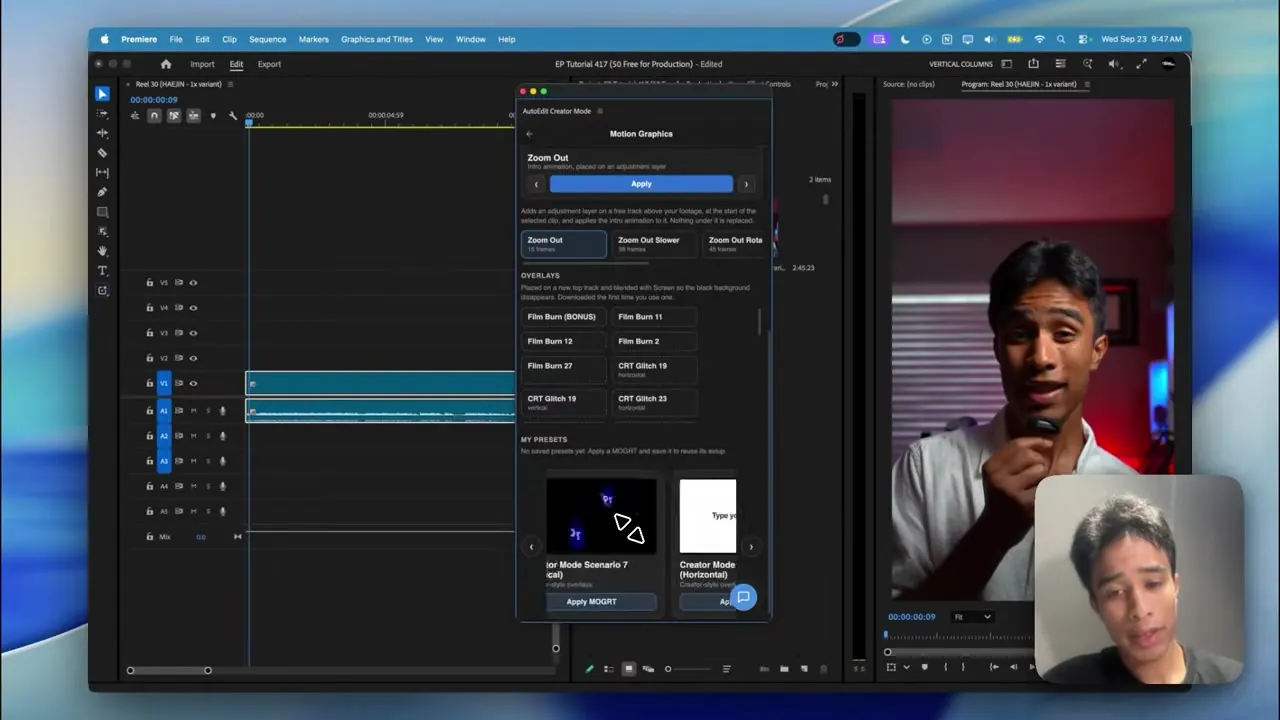
See how AutoEdit handles repetitive editing work inside Premiere Pro while keeping the resulting timeline editable.
6–10. Keep repeated assets close to the timeline
- 6. Save the B-roll clips you use across multiple episodes.
- 7. Keep film burns, paper textures, and overlays in a named library.
- 8. Save your own sound effects instead of searching Finder again.
- 9. Name assets by what they do, not by the original camera filename.
- 10. Insert the asset at the playhead, then trim it in context.
11–15. Use a focused tool for small repetitive jobs
- 11. Paste a copied browser image directly at the playhead.
- 12. Use Auto Reframe for a first vertical, square, or horizontal version.
- 13. Check face tracking and fix any shot where the subject leaves frame.
- 14. Use Silence Cutter for obvious dead air before deeper dialogue editing.
- 15. Build B-roll selects from cleaner sections before cutting the story.
16–20. Make the rough cut easier to review
- 16. Duplicate the sequence before an automatic pass.
- 17. Tell Claude the format, topic, and lines that must stay.
- 18. Review keep-or-cut decisions instead of accepting the whole pass.
- 19. Add final captions after the spoken structure is stable.
- 20. Watch the complete video once without touching the timeline before export.
Which tools in the tutorial are free?
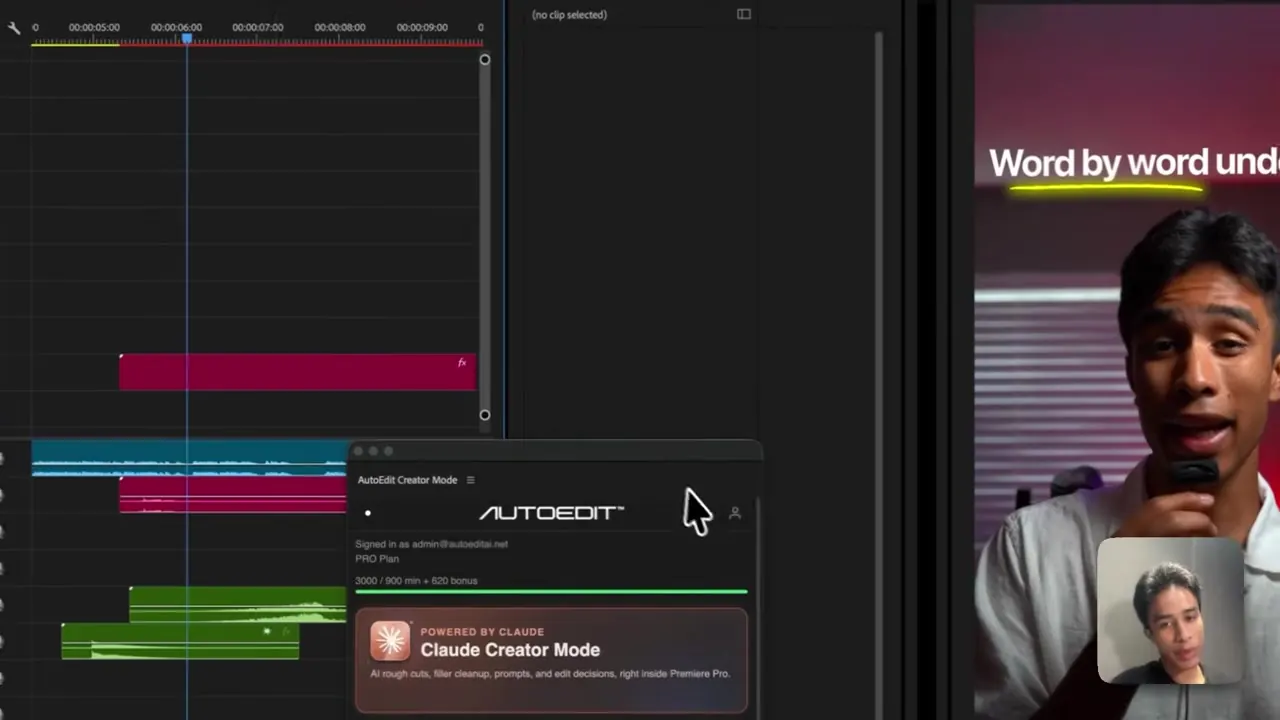
The tutorial shows free motion graphics, overlays, asset libraries, Image Paster, and Auto Reframe tools. It separately previews Claude Creator Mode for transcript-led bad-take and filler-word editing.
Keep that line clear when choosing what to install. A free preset library can save time on repeated graphics without including every AI editing feature or usage level.
Get AutoEdit Creator Mode and the free toolsTips
- Test the first pass on a duplicate sequence.
- Watch the complete result before sending it to a client or publishing it.
- Save the settings that worked for the next video in the same series.
Common mistakes
- Treating an automatic first cut like a finished video.
- Adding effects before the basic cut is easy to follow.
- Skipping the audio, caption, and export check at the end.
Try the workflow
Free tools for this article
Use the most relevant free tool for the task, then continue with the rest of your edit.
Continue in Premiere Pro
Explore AutoEdit Creator Mode
Build an editable starting point, then keep creative control of the timeline.
Explore AutoEdit Creator ModeFrequently asked questions
What is the fastest way to edit videos in Premiere Pro?
Save the assets and settings you repeat, use templates for common graphics, use focused tools for silence and reframing, and review one automatic pass at a time. The best shortcut removes a repeated job without creating more cleanup.
Are the Premiere Pro presets in AutoEdit free?
The tutorial demonstrates free motion graphics, overlays, asset tools, Image Paster, and Auto Reframe inside AutoEdit Creator Mode. Paid Claude editing features are separate.
Can I save my own B-roll and sound effects?
Yes. The tutorial shows custom clip, overlay, and sound libraries that keep repeated assets available from the Premiere Pro extension.
Does Claude Creator Mode finish the entire edit?
No. It can make a transcript-led first pass on spoken footage and present decisions for review. The editor still finishes B-roll, graphics, captions, sound, color, and delivery.
Sources and verification
External product claims were checked against these first-party sources.
The 50+ free Premiere Pro tools tutorial demonstrates the presets, asset libraries, image tool, reframing, and Claude pass summarized in these twenty tips.
AutoEdit Creator Mode is the tracked download page for the free and paid tools separated in this guide.