
The Ultimate List of Premiere Pro & After Effects Plugins (50+): The State of AI in Video Editing & Post-Production
Eighty Premiere Pro and After Effects plugins, panels, and companion apps with host, pricing model, pros, cons, and where AI editing is heading in 2026.

The Ultimate List of Premiere Pro & After Effects Plugins (50+): The State of AI in Video Editing & Post-Production
AI-assisted workflows inside Premiere ProThis is not another shallow “Top 10 Premiere Pro plugins” roundup written by someone who downloaded three extensions for a weekend.
This guide is designed to be useful whether you are searching for the best Premiere Pro plugins, the best After Effects plugins, AI video editing plugins, caption generators, VFX extensions, transitions, speed-ramping tools, color-grading plugins, export utilities, or workflow automation.
Quick Answer
There is no single best Premiere Pro or After Effects plugin for every editor. Start with the bottleneck: an AI rough-cut plugin when your bottleneck is reviewing spoken footage, a multicam plugin when it is switching cameras, a caption plugin when it is social formatting, a beat tool when it is manually marking music, a VFX panel when it is finding and applying effects, and a workflow utility when it is repetitive commands, imports, relinking, or exports.
Editor’s note
I have spent years editing, building preset packs, making Premiere Pro tutorials, and eventually developing my own AutoEdit™ plugins. Along the way, I have watched creators move from selling LUTs and transition packs to building real software companies. Some of the people in this guide are friends. Some directly influenced the path I took as a founder. Others are tools I have watched become industry standards.
A few links in this article are affiliate links. I have kept those links exactly as provided. That means Eleven Percent may earn a commission if you purchase through them, at no additional cost to you. Affiliate status does not automatically make a plugin good, and it does not prevent me from naming its limitations.
Plugin, extension, panel, or standalone app?
Editors use the word “plugin” loosely. This guide includes:
Each entry clearly states the host application and product type.
- Native effects plugins that appear inside Premiere Pro or After Effects
- Dockable extensions and panels
- Companion apps that analyze footage and hand timelines back to Premiere Pro
- Marketplaces and workflow tools that materially extend Adobe post-production
- Built-in Adobe features that directly compete with third-party plugins
How the list was selected
Products were selected using a mix of official product pages, Adobe documentation, current search-result competitors, pricing pages, compatibility information, editor adoption, and relevance to real workflows. I prioritized tools that solve a specific editing problem, have current product activity, or represent an important part of the plugin ecosystem.
Pricing changes frequently. Treat every price below as a researched snapshot, not a permanent guarantee. Always verify the final price on the official page before buying.
Best AI video editing plugins for Premiere Pro
AI editing is now the most competitive part of the Premiere Pro plugin market. The category has moved far beyond silence removal. Current products compete on transcript-based editing, bad-take removal, animated captions, multicam switching, B-roll search, rough-cut generation, viral clip detection, reframing, media organization, and prompt-based timeline control.
The right tool depends less on which company claims to be “all in one” and more on the footage you actually edit.
1. AutoEdit Creator Mode
What it does: AutoEdit Creator Mode uses Claude-powered transcript understanding to help remove weak takes, filler, repeated ideas, mistakes, and silence, then builds a structured rough cut inside Premiere Pro. It is designed to accelerate the first edit rather than pretend the software can replace an editor.
My perspective: I built AutoEdit because I wanted the boring part of editing to happen faster without stripping the editor out of the process. AutoEdit produces editing starting points: rough cuts, structured timelines, beat-based edits, B-roll selects, VFX placement, and documentary timelines. It is not a mobile app and it is not marketed as a replacement for human taste.
- Category: AI editing, transcript editing, captions, rough cuts
- Host: Adobe Premiere Pro
- Official link: https://www.autoeditai.net/
- Price: Subscription; Lite $9.99/month, Creator $29/month, and Pro $79/month, with Lite from $7.99 and Creator from $23.99 billed annually
- Lifetime license: No
- Subscription: Yes
- Free option: Trial/free access may be available through AutoEditAI.net; verify the current offer
- Best for: YouTube videos, talking-head content, podcasts, tutorials, Instagram Reels, and creator workflows
- Pro: Strong fit for talking-head and creator footage
- Pro: Works directly around transcripts and spoken content
- Pro: Keeps the workflow inside Premiere Pro
- Pro: Useful for rough cuts, captions, and repetitive cleanup
- Pro: Built by editors rather than positioned as a generic browser video generator
- Con: Subscription pricing
- Con: AI decisions still require human review
- Con: Not designed to create a perfect finished edit
- Con: Different AutoEdit products live across AutoEditAI.net and ElevenPercent.net, which can require explanation for new users
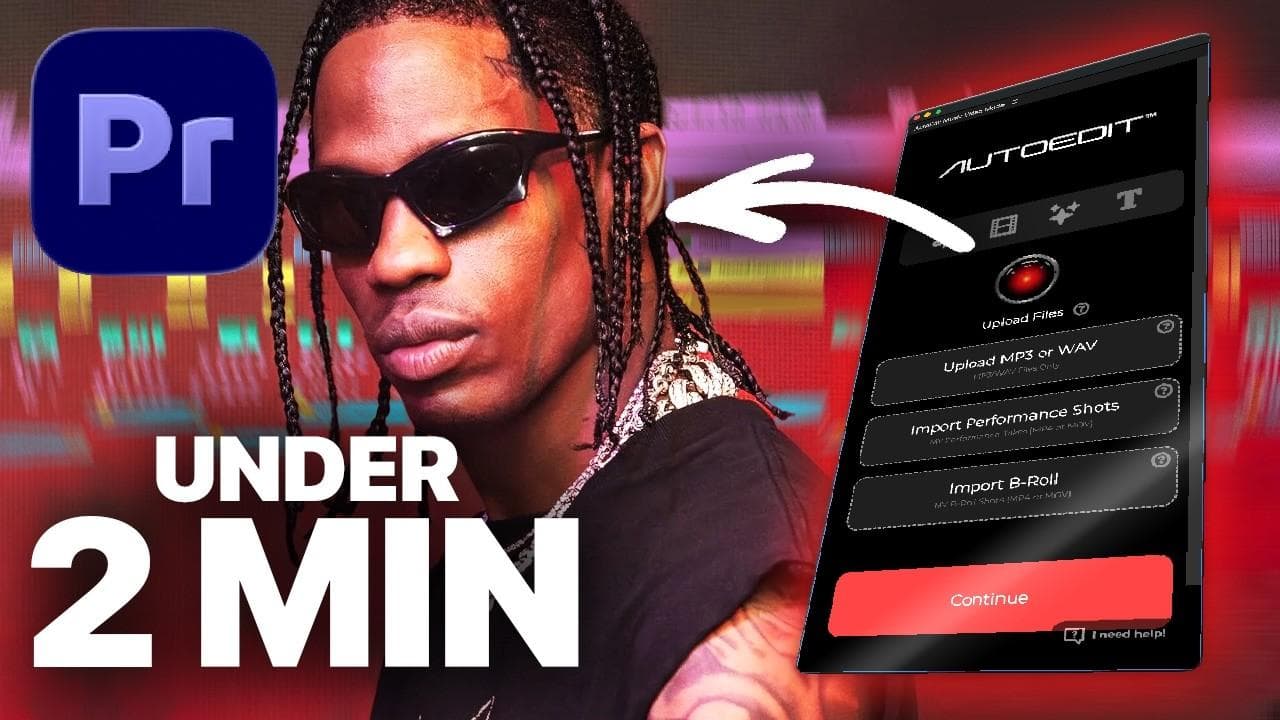
2. AutoEdit Music Video Mode
What it does: Music Video Mode syncs performance takes, detects BPM, cuts to the beat, creates B-roll selects, applies VFX, and generates a rough-cut timeline. Upload order matters: music first, performance takes second, optional B-roll third.
Best use case: A music-video editor has one finished song, several complete performance takes, and a folder of B-roll. AutoEdit creates a starting sequence so the editor can focus on shot choice, pacing, performance, and finishing.
- Category: AI-assisted music-video editing, beat cutting, performance syncing
- Host: Adobe Premiere Pro
- Official link: https://autoedit.elevenpercent.net/
- Price: One-time purchase; verify current sale pricing
- Lifetime license: Yes, based on the current one-time purchase model
- Subscription: No
- Best for: Music-video editors working with a song, full performance takes, and optional B-roll
- Pro: Built specifically for music-video workflows
- Pro: Beat detection and performance-take syncing in one workflow
- Pro: Multiple cutting styles and edit speeds
- Pro: One-time purchase model
- Pro: Can create B-roll quick-select sequences
- Con: Full performance takes work best; incomplete takes can create timeline gaps
- Con: Editors must review shot selection and timing
- Con: Not intended for generic talking-head editing
- Con: Some advanced effects require additional Premiere masking setup
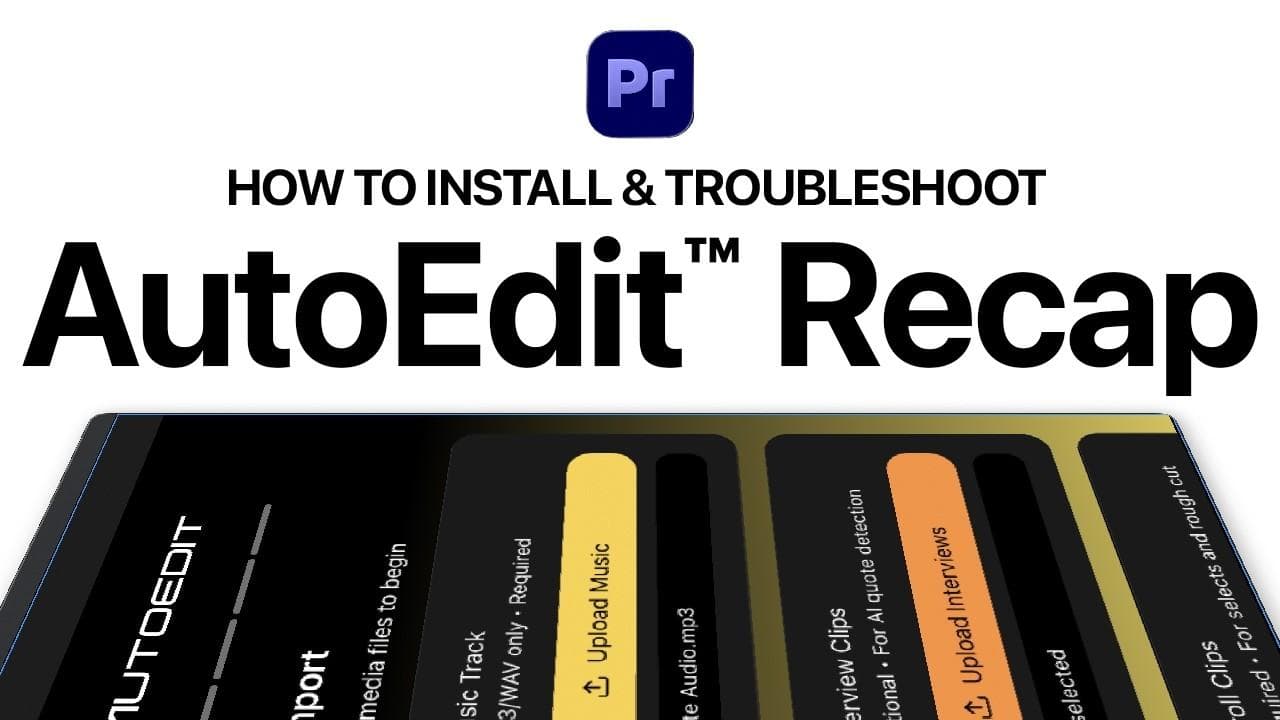
3. AutoEdit Event Recap Mode
What it does: Event Recap Mode combines a music track, required B-roll, and optional interviews. It can detect BPM, build recap timelines, analyze interviews, create documentary-style edits, duck music, and place VFX.
- Category: AI-assisted event editing, interview analysis, documentary timelines
- Host: Adobe Premiere Pro
- Official link: https://autoedit.elevenpercent.net/events
- Price: One-time purchase; verify current sale pricing
- Lifetime license: Yes, based on the current one-time purchase model
- Subscription: No
- Best for: Weddings, concerts, festivals, conferences, corporate events, and recap videos
- Pro: Purpose-built for event videographers
- Pro: Supports interview-led documentary structures
- Pro: Automatic music ducking
- Pro: One-time purchase
- Pro: Useful for turning large B-roll folders into a starting edit
- Con: B-roll is required
- Con: Interview analysis and generated timelines still need editorial judgment
- Con: WAV music files generally work best for BPM detection
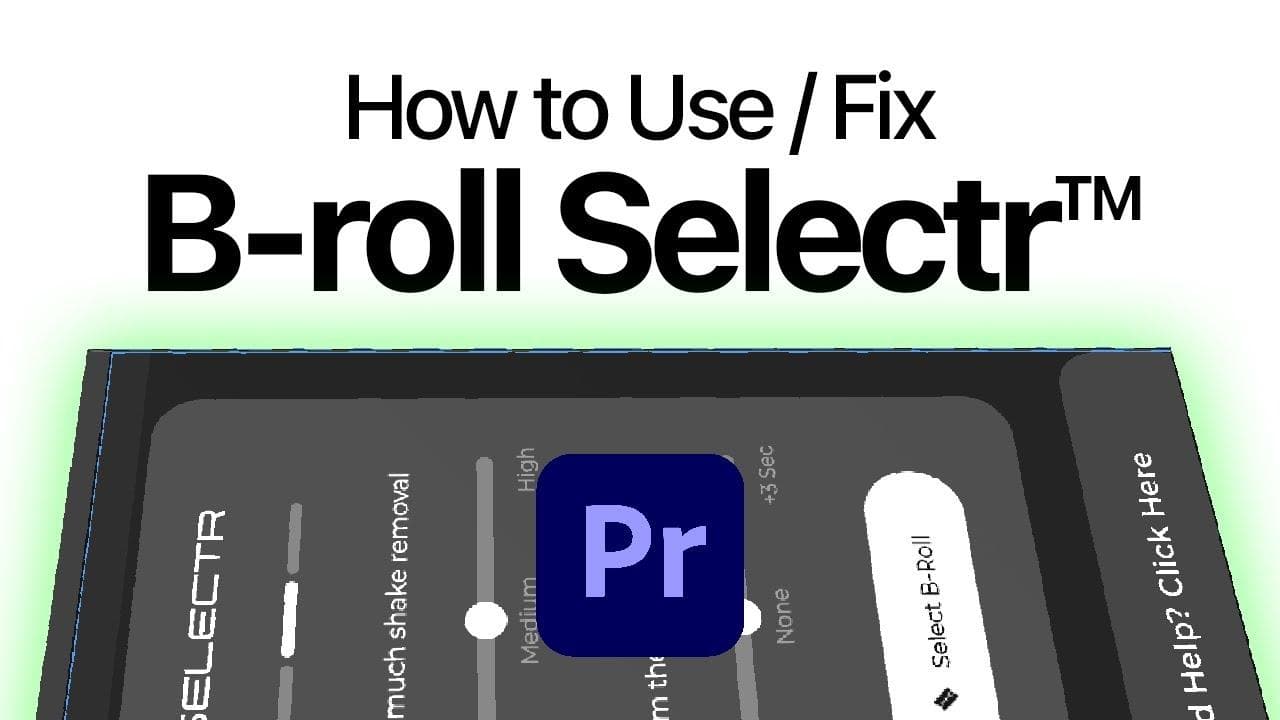
4. Selectr AI B-Roll Selector
- Category: AI B-roll selection and footage preparation
- Host: Adobe Premiere Pro
- Official documentation: https://elevenpercent.net/pages/autoedit%E2%84%A2-help-docs#selectr-using
- Price: Current documented price is $19/month after a seven-day trial
- Lifetime license: No
- Subscription: Yes
- Best for: Editors who need to trim unusable clip edges and build quick-select sequences from large B-roll folders
- Pro: Focused tool for a specific pre-edit bottleneck
- Pro: Creates a B-roll Quick Selects sequence
- Pro: Useful for event, music-video, and creator projects
- Pro: Batch-oriented workflow
- Con: Selects are not guaranteed to be perfect
- Con: Large batches can stall; smaller batches are safer
- Con: It creates a preparation sequence, not a final story edit
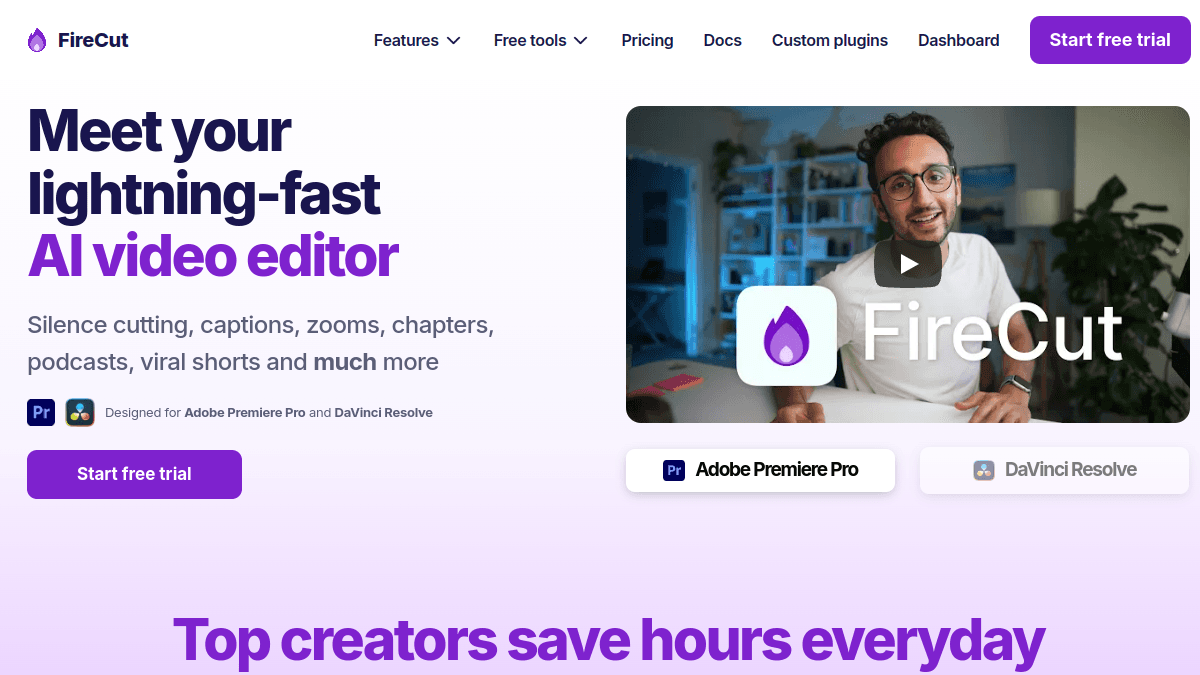
5. FireCut
What it does: FireCut automates common editing work such as transcription, captions, silence cleanup, and other creator-focused timeline tasks.
My perspective: Suhail, the founder of FireCut, is a cool dude. I remember hearing him on Ali Abdaal’s podcast talk about building FireCut, and it was honestly inspiring seeing somebody actually make a real business from a Premiere Pro plugin. It was one of the things that made me feel like I could quit my job and go all in on AutoEdit too.
- Category: AI editing, captions, podcast editing, silence removal
- Host: Premiere Pro and DaVinci Resolve
- Price: Subscription plans with a seven-day free trial; lifetime pricing may be available by request
- Lifetime license: Potentially, by request
- Subscription: Yes
- Best for: YouTubers, podcast editors, agencies, and editors who want several repetitive editing tasks in one panel
- Pro: Mature creator-focused AI workflow
- Pro: Supports Premiere Pro and DaVinci Resolve
- Pro: Broad language support
- Pro: Combines several common automation tools
- Pro: Team options are available
- Con: Subscription cost can add up
- Con: Broad feature sets are not always necessary for editors who need only one task
- Con: AI-generated decisions need review
6. AutoCut
How it compares with AutoEdit: AutoCut is broad and creator-oriented. AutoEdit is split into specialized workflows: Creator Mode for transcript-driven content, Music Video Mode for performance editing, Event Recap Mode for event footage, and Selectr for B-roll preparation. Editors choosing between them should start with footage type, not marketing claims.
- Category: AI editing, silence removal, captions, auto zoom, B-roll, podcast tools
- Host: Premiere Pro and DaVinci Resolve
- Official link: https://www.autocut.com/en/
- Price: Subscription; plans vary by usage and current offer
- Lifetime license: Not generally positioned as the default model
- Subscription: Yes
- Best for: Editors who want a wide suite of social-video and podcast automation features
- Pro: Large feature set
- Pro: Strong search visibility and market awareness
- Pro: Works in Premiere Pro and DaVinci Resolve
- Pro: Handles common creator tasks such as silence removal, captions, zooms, and B-roll
- Con: Subscription model
- Con: An all-in-one panel can be excessive for specialized editors
- Con: Product breadth can make direct comparisons difficult
7. Cutback Selects
What it does: Selects ingests raw footage, transcribes speech, detects speakers, removes silence, organizes content, and exports a structured timeline to Premiere Pro, Final Cut Pro, or DaVinci Resolve.
Personal note: Ducky is my friend, and I think the way Selects handles the pre-edit side is really cool. It is a different approach from AutoEdit, since it analyzes and organizes footage before handing it back to the editor.
- Category: AI pre-editing, footage organization, rough cuts
- Type: Standalone companion app with NLE handoff
- Official link: https://cutback.video/selects
- Subscription: Likely, depending on current plan
- Best for: Long-form creators, vloggers, podcasts, interviews, and editors who want footage analyzed before entering the NLE
- Pro: Works across multiple NLEs
- Pro: Strong pre-edit organization
- Pro: Useful for large long-form projects
- Pro: Can prepare a labeled timeline before creative editing begins
- Con: It is not simply a docked Premiere panel
- Con: Requires a handoff workflow
- Con: The quality of a rough cut depends on the clarity and structure of the footage
8. Cutback Premiere Assistant
- Category: AI assistant, transcription, captions, B-roll, image editing, prompt-based editing
- Host: Adobe Premiere Pro
- Official link: https://cutback.video/
- Best for: Editors who want a broad AI assistant directly inside Premiere Pro
- Pro: Wide feature coverage
- Pro: Native Premiere workflow
- Pro: Pairs naturally with Cutback Selects
- Con: Feature overlap with Premiere’s own expanding AI Assistant
- Con: Editors should compare actual workflow speed, not just feature count
9. Phantom Editor
Notable tools include Wraith Multi-Cam Editor, Echoe Scribe, Viral Spectre, Banshee Captioner, silence removal, repeat removal, chapter markers, folder management, transition management, stock media, reframing, and downloading utilities.
- Category: All-in-one AI Premiere Pro ecosystem
- Host: Adobe Premiere Pro
- Official link: https://phantomeditor.video/
- Price: Monthly and yearly options; several standalone tools also use one-time pricing
- Lifetime license: Available for some products
- Subscription: Yes for the broader suite
- Best for: Editors who want multiple AI and utility tools from one vendor
- Pro: Large tool ecosystem
- Pro: Mix of free, subscription, and one-time products
- Pro: Strong utility coverage beyond generative AI
- Pro: Some standalone products avoid recurring fees
- Con: The product catalog can feel fragmented
- Con: Not every editor needs the full suite
- Con: Vendor-authored comparisons naturally favor the vendor’s own tools
10. Adobe Premiere AI Assistant (beta)
What it does: Adobe describes AI Assistant as an orchestrator that understands an editing objective, selects Premiere tools, and executes multi-step actions such as organizing media and assembling a first cut.
My perspective: Shoutout to Jason Druss from Adobe. He is always talking to editors, asking for feedback, and actually paying attention to what people building plugins are saying. I think that is really important because Adobe tools are way better when the people using them are actually involved in the conversation.
- Category: Built-in AI assistant and editing orchestration
- Host: Adobe Premiere Pro
- Official link: https://helpx.adobe.com/premiere/desktop/premiere-ai-assistant/overview.html
- Price: Included in eligible Adobe access during beta; future commercial terms may change
- Lifetime license: No; tied to Adobe access
- Subscription: Adobe Creative Cloud
- Best for: Editors who want natural-language project organization and multi-step actions without installing a third-party extension
- Pro: Native Adobe integration
- Pro: No separate third-party panel required
- Pro: Potential access to project-level Premiere actions
- Pro: Built by the application developer
- Con: Beta behavior and availability can change
- Con: Adobe’s built-in feature roadmap may move slower than focused startups
- Con: Editors may prefer specialized tools for specific workflows
11. Premiere Copilot
- Category: AI captions, silence removal, reframing, editing automation
- Host: Adobe Premiere Pro
- Official link: https://www.premierecopilot.com/
- Price: Free tier and paid Pro+ plan; researched pricing listed Pro+ at $7.99
- Lifetime license: No
- Subscription: Yes
- Best for: Budget-conscious creators who want several AI tools in one panel
- Pro: Aggressive pricing
- Pro: Free entry option
- Pro: Native Premiere positioning
- Con: Editors should independently verify quality claims from vendor comparison pages
- Con: Newer ecosystems may have less long-term compatibility history
12. YondCut
- Category: AI silence removal, transcription, captions, profanity cleanup, reframing
- Host: Adobe Premiere Pro
- Official link: https://www.yondcut.com/
- Price: Published launch pricing has included $4.99/month, with lifetime options advertised
- Lifetime license: Yes, when offered
- Subscription: Yes
- Best for: Creators who value local processing and a focused set of repetitive editing tools
- Pro: Local processing is attractive for privacy and speed
- Pro: Focused feature set
- Pro: Low entry price
- Pro: Lifetime option
- Con: Smaller product ecosystem
13. AutoPod
- Category: Multicam podcast editing
- Host: Adobe Premiere Pro
- Official link: https://www.autopod.fm/
- Subscription: Commonly sold as recurring access
- Best for: Video podcasts, interviews, and multicamera dialogue edits
- Pro: Focused multicam automation
- Pro: Useful for repeatable podcast formats
- Pro: Established name in AI podcast editing
- Con: Narrower than all-in-one suites
- Con: Automated camera choices still need review
- Con: Less useful outside dialogue-driven multicam work
14. KreateFlo
- Category: AI multicam, captions, repeat removal, viral clips, transcription
- Host: Adobe Premiere Pro
- Official link: https://kreateflo.com/
- Price: Free tier and paid plans; verify current pricing
- Subscription: Yes
- Best for: Podcast and YouTube workflows
- Pro: Broad creator feature set
- Pro: Multilingual positioning
- Pro: Free tools can lower adoption friction
- Con: Vendor-published ranking pages should be treated as marketing, not independent testing
- Con: Feature overlap with several established products
15. Brevidy Media Browser
Personal note: Danny Perry also made PluginPlay, which is basically a newer marketplace for Adobe plugins. The idea is to give upcoming plugin developers another place to get discovered instead of everything having to go through aescripts.
- Category: AI captions, media browsing, automatic editing
- Host: Adobe Premiere Pro
- Price: Subscription model historically discussed by users; verify current pricing
- Lifetime license: No known standard lifetime plan
- Subscription: Yes
- Best for: Social editors who want caption and media tools inside Premiere Pro
Captions, transcription, and social video
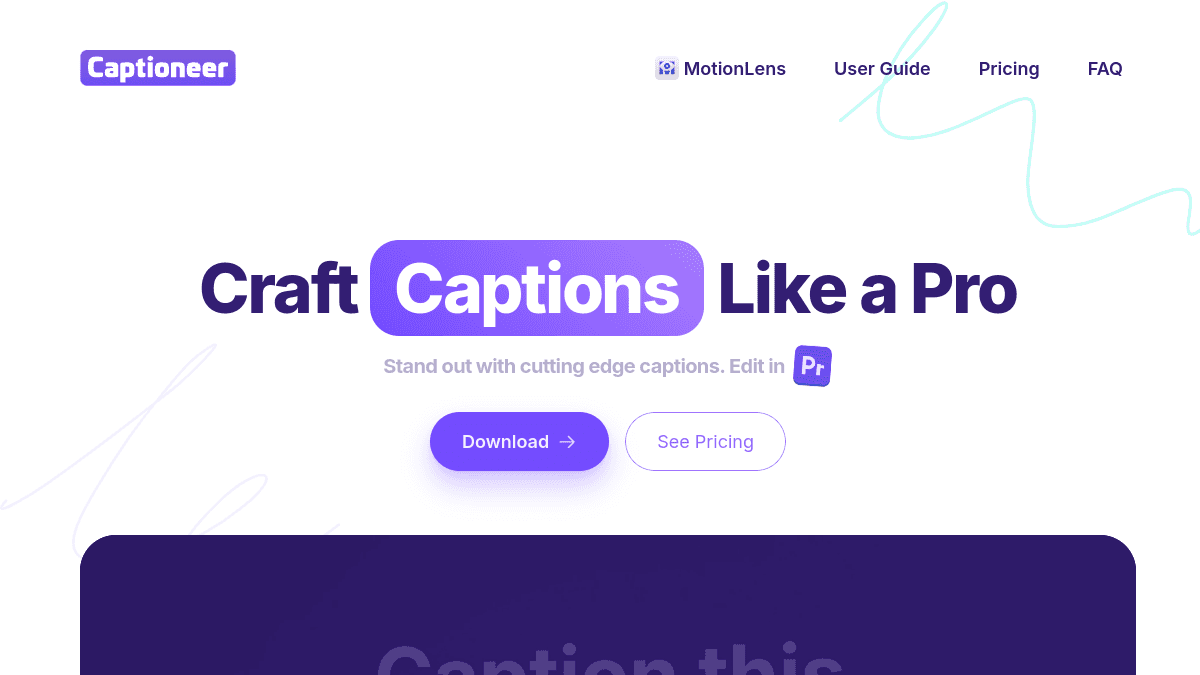
16. Captioneer
What it does: Captioneer converts transcript timing into animated Motion Graphics Template-based captions inside Premiere Pro, with styles designed for social video.
Personal note: Captioneer is made by Nic Dean. What I like about it is that it is not just transcribing words, it is actually built around making the captions look good inside Premiere.
- Category: Animated captions and social subtitles
- Host: Adobe Premiere Pro
- Subscription: Available
- Best for: Editors creating branded Reels, Shorts, TikToks, podcasts, and social clips
- Pro: Designed specifically for Premiere Pro
- Pro: Fast animated-caption workflow
- Pro: Brandable caption styles
- Pro: Mac and Windows support for current Premiere versions
- Con: MOGRT-heavy timelines can become demanding on long videos
- Con: Template compatibility depends on Premiere version
- Con: Subscription fatigue is a real concern for editors who caption infrequently
17. Bansee / Banshee Captioner by Phantom
- Category: AI captioning and transcription
- Host: Adobe Premiere Pro
- Official link: https://phantomeditor.video/features
- Price: Included according to the current Phantom product structure; verify plan
- Lifetime license: Verify standalone availability
- Subscription: Yes within the suite
- Best for: Existing Phantom users who want captioning without another vendor
18. Echoe Scribe
- Category: AI transcription and SRT captions
- Host: Adobe Premiere Pro
- Official link: https://phantomeditor.video/blog/echoe-scribe-standalone-plugin-premiere-pro
- Price: One-time purchase advertised
- Lifetime license: Yes
- Subscription: No
- Best for: Editors who want transcription without a recurring subscription
- Pro: One-time purchase
- Pro: Focused transcription workflow
- Pro: Useful for SRT-based delivery
- Con: Less of a visual-caption system than dedicated caption-design plugins
19. Submachine
- Category: Animated captions
- Host: Adobe Premiere Pro
- Official link: https://aescripts.com/submachine/
- Lifetime license: Usually sold as a perpetual license with paid major upgrades
- Subscription: No standard subscription
- Best for: Editors who want precise word-level caption animation in Premiere Pro
- Pro: Popular among social editors
- Pro: Strong word-level animation control
- Pro: One-time purchase model
- Con: Requires setup and style management
- Con: Not a complete AI rough-cut tool
20. Transcriptive
- Category: Transcription and text-based editing
- Host: Adobe Premiere Pro
- Official link: https://digitalanarchy.com/transcriptive/
- Lifetime license: Historically available as a purchase
- Best for: Documentary, interview, and transcript-heavy workflows
21. Caption Burner / Caption Converter
- Category: Caption formatting and conversion
- Host: After Effects and supported FxFactory hosts
- Official link: https://fxfactory.com/
- Price: Varies by product
- Lifetime license: Often one-time
- Subscription: Depends on product
- Best for: Broadcast, localization, and caption-delivery workflows
VFX, stylized effects, and music-video plugins
22. FXBuddy
- Category: AI-powered VFX placement and effect search
- Host: Premiere Pro and After Effects CC 2022+
- Affiliate link: https://fxbuddy.app/?ref=ElevenPercent
- Best for: Editors who want a faster way to discover and apply VFX inside Adobe
- Pro: Supports Premiere Pro and After Effects
- Pro: AI-assisted approach to effect discovery
- Pro: Reduces time spent digging through effect folders
- Con: Results depend on the quality and range of the included library
- Con: AI-assisted placement still needs taste and timing
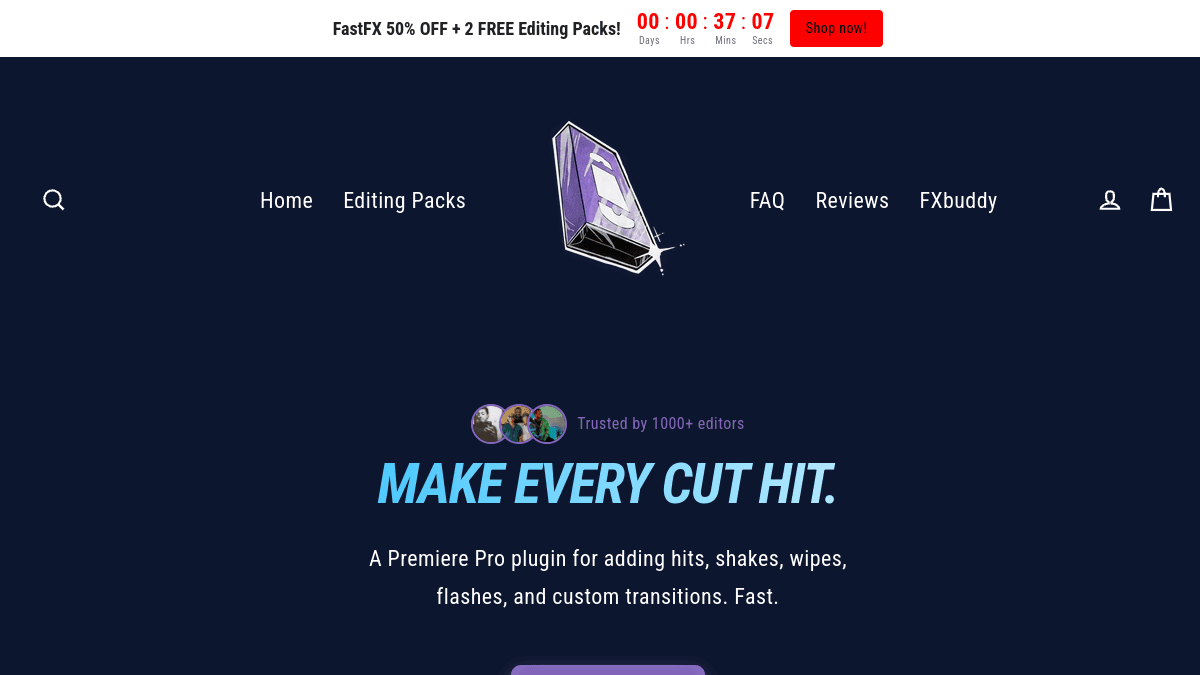
23. FastFX
What it does: FastFX applies customizable effects at the playhead, including hits, shakes, wipes, flashes, CRT looks, thermal effects, and transitions.
Personal note: Jakob from Tiny Tapes was probably the first person I personally knew of who went from selling preset packs to making an actual plugin. I remember seeing that and thinking it was really cool because I genuinely did not know you could make that jump. It definitely made building plugins feel more possible for me too.
- Category: Transitions, shakes, hits, wipes, flashes, stylized effects
- Host: Adobe Premiere Pro
- Price: Researched sale price $149.99, regular comparison price $299.99
- Lifetime license: Yes
- Subscription: No
- Best for: Music videos, car edits, sports content, and high-energy social edits
- Pro: One-time purchase with lifetime access and updates
- Pro: Built for fast high-energy editing
- Pro: Effects are customizable
- Pro: No third-party effects required
- Con: The visual style is intentionally aggressive and will not fit every project
- Con: Editors can overuse one-click effects
- Con: Always verify current Premiere compatibility
24. Clutch
Personal note: Asim is my friend, and he comes from that same music-video and high-energy editing world. Clutch and AEMV basically take that style and make it faster to use inside After Effects.
- Category: Music-video VFX and rapid effect application
- Host: Adobe After Effects
- Affiliate link: https://aexploit.com/products/clutch/?ref=ylaksdmx
- Best for: Music-video editors who want stylized VFX quickly
25. AEMV
- Category: Automated music-video editing and VFX
- Host: Adobe After Effects
- Affiliate link: https://aexploit.com/?ref=ylaksdmx
- Best for: After Effects-based music-video creators
- Pro: Built around a clear music-video niche
- Pro: Stylized workflows rather than generic corporate templates
- Con: After Effects-first workflows can be heavier than editing natively in Premiere
26. Particle FX by Editing Visuals
Personal note: Pelle is my friend, and his stuff actually feels like it was made by somebody who edits. Particle FX is simple, but the effects are useful and they look good without needing a bunch of extra setup.
- Category: Particle effects, hologram, glitch, modulation
- Host: Adobe After Effects 2026
- Official link: https://editingvisuals.com/collections/all-products/products/particle-fx
- Price: Researched sale price $77, comparison price $127
- Lifetime license: Yes
- Subscription: No
- Best for: Music-video editors and stylized social content
- Pro: More than 40 particle looks
- Pro: One-click application with customization
- Pro: No paid third-party plugin required for advertised looks
- Pro: Lifetime access and future updates
- Con: After Effects only
- Con: Preset-led particle effects are less flexible than building a custom particle system
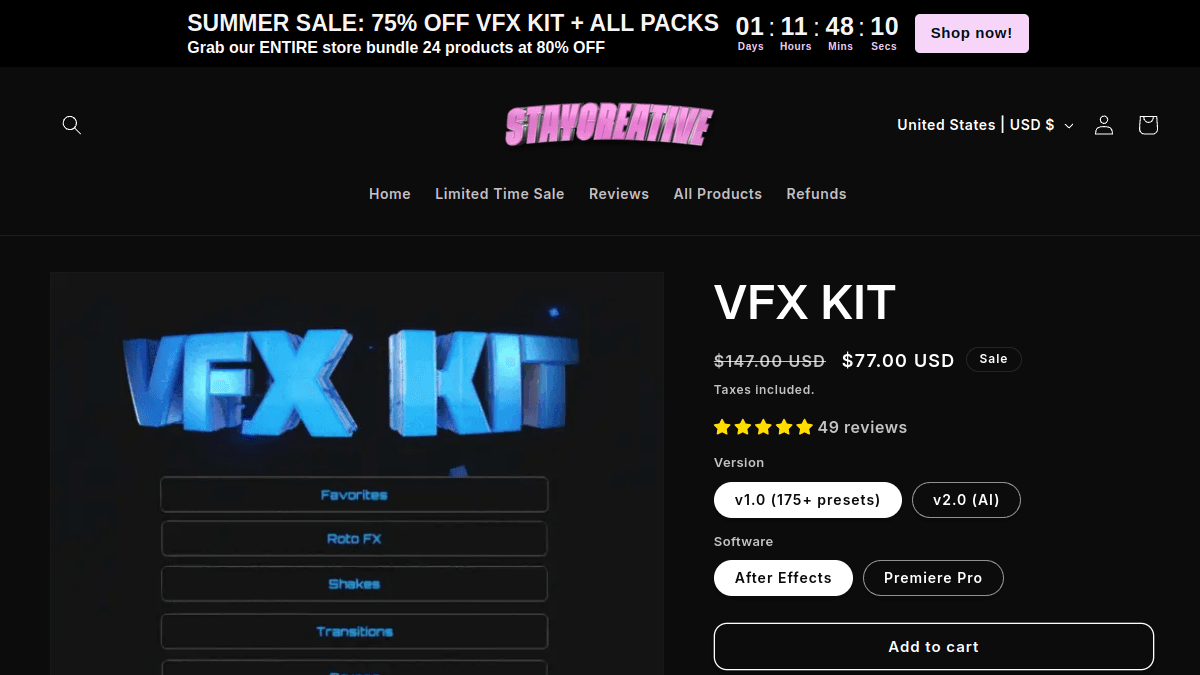
27. VFX Kit by Lurking Visuals
Personal note: Ismail from Lurking Visuals is the goat. The part I really like about VFX Kit is the search bar, you can literally search for the effect you want instead of digging through a million folders trying to remember what everything is called.
- Category: Searchable VFX library and AI effect assistant
- Host: After Effects and Premiere Pro, depending on selected version
- Price: Researched current sale pricing around $77, with different versions and bundles
- Lifetime license: One-time purchase model
- Subscription: No standard subscription
- Best for: Music-video editors, viral edits, and editors who want searchable effects
- Pro: Search-oriented interface
- Pro: Versions for After Effects and Premiere Pro
- Pro: Large preset library
- Pro: AI-assisted version available
- Con: Some bundled add-ons may recommend or require third-party plugins
- Con: Large preset libraries still require restraint and taste
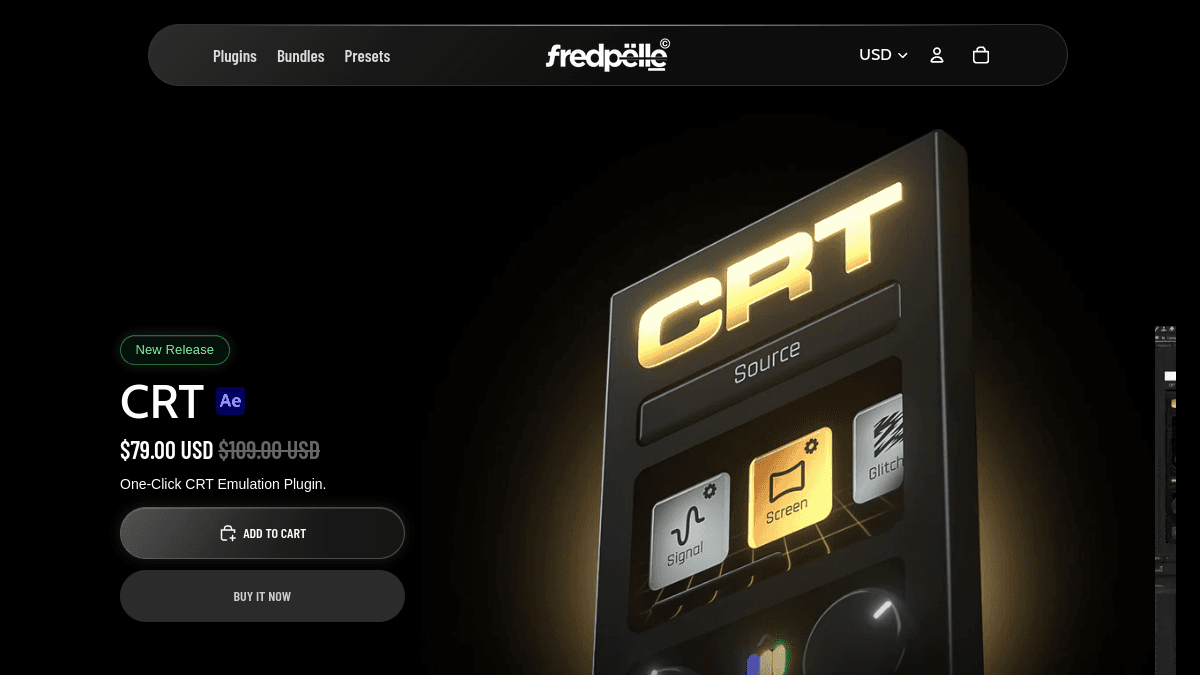
28. CRT by Fred Pelle
Personal note: Fred is one of those people who really cares about how the final result actually looks. His CRT plugin and paper-style effects are just genuinely good-looking effects, not a pack with a huge number of effects slapped on it.
- Category: CRT emulation, analog display effects
- Host: Adobe After Effects CC 202
- Affiliate link: https://fredpelle.tv/products/crt?variant=48832298746011%2F%3Fref%3Dpwjakapw
- Price: Researched sale price $79, comparison price $109
- Lifetime license: Yes, including product updates
- Subscription: No
- Best for: CRT, analog-screen, retro-display, and high-taste mixed-media edits
- Pro: Focused one-click CRT workflow
- Pro: Strong final-result orientation
- Pro: Lifetime updates
- Pro: Commercial-use licensing
- Con: After Effects only
- Con: A specific visual style rather than a universal utility
29. MXM 2.0 by Fred Pelle
- Category: Mixed-media and paper-style effects
- Host: Adobe After Effects
- Official link: https://fredpelle.tv/
- Price: Researched sale price $79
- Lifetime license: Yes
- Subscription: No
- Best for: Editorial collage, paper motion, mixed media, and documentary-style visual design
30. Shake Sauce 2 by Bryan Delimata
Personal note: Bryan Delimata’s Shake Sauce is basically a classic if you grew up watching After Effects music-video tutorials. It was also one of the earlier plugins that made me realize somebody could take their editing style and turn it into an actual tool.
- Category: Shake effects and high-energy motion
- Host: Adobe After Effects
- Official link: https://bryandelimata.com/
- Price: Researched options included $47/month or $23/month billed yearly; legacy Shake Sauce is also sold as a one-time product
- Lifetime license: Available for the legacy version; verify Shake Sauce 2 purchase options
- Subscription: Yes for Shake Sauce 2 plans
- Best for: Music videos, social edits, and editors who want customizable shake presets
- Pro: Well-known music-video editing tool
- Pro: Custom preset creation and sharing
- Pro: Strong community recognition
- Pro: Fast application
- Con: Subscription is expensive for editors who need shakes occasionally
- Con: Shake effects are easy to overuse
31. Sapphire by Boris FX
- Category: Professional VFX, transitions, lighting, distortion, stylization
- Host: Premiere Pro, After Effects, and other professional hosts
- Official link: https://borisfx.com/products/sapphire/
- Price: Subscription and perpetual options vary by host and bundle
- Lifetime license: Perpetual options may be available
- Subscription: Yes
- Best for: Professional editors, broadcast, trailers, music videos, and VFX-heavy finishing
- Pro: Industry-standard effect library
- Pro: Deep customization
- Pro: Strong transitions, glows, distortions, and stylized effects
- Pro: Broad host compatibility
- Con: Expensive
- Con: Can be overkill for casual creators
- Con: Common presets can become visually recognizable
32. Boris FX Continuum
- Category: Effects, keying, image restoration, titles, particles, transitions
- Host: Premiere Pro, After Effects, and other hosts
- Official link: https://borisfx.com/products/continuum/
- Price: Subscription and perpetual options
- Lifetime license: Perpetual options available in some configurations
- Subscription: Yes
- Best for: Editors who want a broad professional effects suite
33. Mocha Pro
- Category: Planar tracking, object removal, stabilization, roto
- Host: Adobe hosts and standalone
- Official link: https://borisfx.com/products/mocha-pro/
- Price: Subscription and perpetual options
- Lifetime license: Available in some licensing models
- Subscription: Yes
- Best for: Tracking, screen replacement, cleanup, and professional compositing
34. Red Giant Universe
- Category: Stylized effects, transitions, glows, retro looks, motion graphics
- Host: Premiere Pro and After Effects
- Official link: https://www.maxon.net/en/red-giant
- Price: Included in Red Giant/Maxon subscription structures
- Lifetime license: No standard current perpetual license
- Subscription: Yes
- Best for: Editors who want a large, consistent creative-effects suite
- Pro: Large selection of recognizable effects
- Pro: Works across Premiere and After Effects
- Pro: Updated inside the unified Red Giant installer
- Con: Subscription only in current mainstream licensing
- Con: Installing a full suite can be heavy when you need one effect
35. Trapcode Particular
- Category: 3D particles and motion graphics
- Host: Adobe After Effects
- Official link: https://www.maxon.net/en/red-giant/trapcode
- Price: Red Giant/Maxon subscription
- Lifetime license: No standard current perpetual plan
- Subscription: Yes
- Best for: Advanced particle systems, motion design, abstract backgrounds, and VFX
- Pro: Deep professional particle system
- Pro: Mature ecosystem and learning resources
- Pro: Far more flexible than preset-only particle panels
- Con: Learning curve
- Con: Expensive subscription
- Con: Heavy projects can be demanding
36. Video Copilot Saber
- Category: Energy beams, neon, lightsabers, animated strokes
- Host: Adobe After Effects
- Official link: https://www.videocopilot.net/products/saber/
- Price: Free
- Lifetime license: Free
- Subscription: No
- Best for: Neon text, energy effects, sci-fi interfaces, and animated masks
37. Video Copilot Element 3D
- Category: Real-time 3D objects and text
- Host: Adobe After Effects
- Official link: https://www.videocopilot.net/products/element2/
- Price: One-time purchase; verify current price
- Lifetime license: Yes for purchased version
- Subscription: No
- Best for: 3D logo animation, product mockups, and motion graphics without leaving After Effects
38. Deep Glow
- Category: Physically inspired glow
- Host: Adobe After Effects
- Official link: https://aescripts.com/deep-glow/
- Lifetime license: Perpetual license with version-update terms
- Subscription: No
- Best for: High-quality glow, neon, energy, and compositing
39. RealSmart Motion Blur
- Category: Motion blur generation
- Host: After Effects, Premiere Pro, and other supported hosts
- Official link: https://revisionfx.com/products/rsmb/
- Price: One-time purchase; verify edition
- Lifetime license: Yes for purchased version
- Subscription: No
- Best for: Adding or improving motion blur on footage and animation
40. Twixtor
- Category: Slow motion and frame interpolation
- Host: Premiere Pro, After Effects, and other supported hosts
- Official link: https://revisionfx.com/products/twixtor/
- Price: One-time purchase; edition pricing varies
- Lifetime license: Yes for purchased version
- Subscription: No
- Best for: Speed ramps, slow motion, sports, music videos, and retiming
- Pro: Long-standing retiming standard
- Pro: More control than basic frame blending
- Con: Expensive
- Con: Optical-flow artifacts still occur on occlusion and complex motion
Motion graphics, animation, and titles
41. Animation Composer by Mister Horse
- Category: Animation presets, transitions, titles, sounds, graphic elements
- Host: Premiere Pro and After Effects
- Official link: https://misterhorse.com/
- Price: Core plugin is free; paid packs available
- Lifetime license: Free core; paid packs vary
- Subscription: No standard subscription required
- Best for: Editors and motion designers who want fast, reliable animation building blocks
- Pro: Massive user base
- Pro: Free core plugin
- Pro: Works in both Premiere and After Effects
- Pro: Broad pack ecosystem
- Con: Buying many packs can become expensive
- Con: Popular presets can look familiar
42. Gal Toolkit by Premiere Gal
Personal note: I grew up watching Kelsey’s Premiere Gal tutorials, so it is cool seeing her have her own toolkit now. Gal Toolkit has a bunch of titles, effects, transitions, and other stuff made for the same editors who learned Premiere from her videos.
- Category: Titles, transitions, effects, overlays, interface elements
- Host: Premiere Pro and After Effects
- Official link: https://premieregal.com/buytoolkit
- Best for: Editors who want a large, creator-friendly effects and graphics library
- Pro: More than 1,565 elements advertised
- Pro: Premiere and After Effects support
- Pro: Broad coverage across titles, overlays, transitions, and shapes
- Con: Large libraries can encourage generic design choices
- Con: Verify exactly what is native versus template-based
43. Overlord 2
- Category: Illustrator, Figma, and Photoshop asset transfer to After Effects
- Host: Adobe After Effects with supported design apps
- Official link: https://battleaxe.co/overlord
- Price: One-time purchase; verify current price
- Lifetime license: Yes for purchased version
- Subscription: No
- Best for: Motion designers moving vector and design assets into After Effects
- Pro: Eliminates repetitive import steps
- Pro: Preserves editable shape information
- Pro: Essential for design-to-motion workflows
- Con: Specialized tool
- Con: Value is lower for editors who rarely use Illustrator or Figma
44. Motion 4
- Category: Animation workflow, easing, anchor points, sequencing, utilities
- Host: Adobe After Effects
- Official link: https://www.mtmograph.com/products/motion-4
- Price: One-time purchase; verify current price
- Lifetime license: Yes for purchased version
- Subscription: No
- Best for: Motion designers who want a compact daily animation toolkit
45. Flow
- Category: Easing curves and animation timing
- Host: Adobe After Effects
- Official link: https://aescripts.com/flow/
- Lifetime license: Yes for purchased version
- Subscription: No
- Best for: Motion designers who want reusable easing curves
46. EaseCopy
- Category: Copying and pasting easing values
- Host: Adobe After Effects
- Official link: https://aescripts.com/easecopy/
- Price: Name-your-own-price or low-cost model; verify current listing
- Lifetime license: Yes
- Subscription: No
- Best for: Consistent animation timing across keyframes
47. LayerLUT Exporter
Personal note: My friend Nate made this one. It does one really specific thing: it turns the look you built with layers in After Effects into a .cube LUT you can use in other software.
- Category: Color workflow and LUT export
- Host: Adobe After Effects
- Official link: https://aescripts.com/layerlut-exporter/
- Price: $29.99 at time of research
- Lifetime license: Yes
- Subscription: No
- Best for: Creating .cube LUTs from an After Effects layer stack
48. Scale Titles by Mister Horse
- Category: Minimal responsive titles
- Host: Premiere Pro and After Effects
- Official link: https://misterhorse.com/
- Price: Paid pack; verify current price
- Lifetime license: One-time pack purchase
- Subscription: No
- Best for: Clean title design that needs to scale across formats
Transitions, shakes, speed ramps, and editing rhythm
49. Film Impact effects and transitions
- Category: Transitions, effects, and animations
- Host: Adobe Premiere Pro
- Official link: https://www.filmimpact.com/
- Price: Included at no additional charge in current Premiere Pro releases from version 25.5 onward; long-term-support installers exist for older versions
- Lifetime license: Tied to Adobe access for current integration
- Subscription: Adobe Creative Cloud
- Best for: Editors who want a large modern transition and effect library built directly into Premiere
- Pro: More than 90 modern effects, transitions, and animations integrated into Premiere
- Pro: No separate Film Impact subscription for current Premiere users
- Pro: Strong customization
- Con: Requires a current compatible Premiere version for integrated access
- Con: The plugin has effectively become part of the Adobe ecosystem rather than an independent purchase
50. BeatEdit 2 for Premiere Pro
- Category: Beat detection and marker generation
- Host: Adobe Premiere Pro
- Official link: https://aescripts.com/beatedit-for-premiere-pro/
- Price: Researched regular price $99.99
- Lifetime license: Yes for purchased version
- Subscription: No
- Best for: Music videos, montages, trailers, and beat-synced editing
- Pro: Automatically detects beats and creates timeline markers
- Pro: More flexible than manually tapping every beat
- Pro: Available across Premiere, After Effects, and Audition
- Con: It does not build the entire edit
- Con: Beat detection is only the first step in good rhythmic editing
51. Excalibur
- Category: Command search, macros, workflow automation
- Host: Adobe Premiere Pro
- Official link: https://knightsoftheeditingtable.com/excalibur
- Price: One-time purchase; verify current pricing
- Lifetime license: Yes for purchased version
- Subscription: No
- Best for: Keyboard-driven editors who want to execute Premiere commands and custom actions quickly
- Pro: Major speed improvement for repetitive commands
- Pro: Search-driven workflow
- Pro: Supports custom actions
- Con: Requires setup to unlock its full value
- Con: Less visually exciting than an effects plugin, despite potentially saving more time
52. QuickBar Pro
- Category: All-in-one After Effects workflow utility
- Host: Adobe After Effects
- Official link: https://quickbar.pro/
- Price: One-time purchase
- Lifetime license: Yes, with advertised free updates for life
- Subscription: No
- Best for: Motion designers who want alignment, presets, color tools, expressions, bezier tools, font management, and productivity features in one panel
Color, film looks, retouching, and restoration
53. Magic Bullet Looks
- Category: Color grading and film looks
- Host: Premiere Pro, After Effects, and other supported hosts
- Official link: https://www.maxon.net/en/red-giant/magic-bullet
- Price: Red Giant/Maxon subscription
- Lifetime license: No standard current perpetual license
- Subscription: Yes
- Best for: Fast look development, stylized grades, and finishing
54. Colorista
- Category: Color correction and grading
- Host: Premiere Pro and After Effects
- Official link: https://www.maxon.net/en/red-giant/magic-bullet
- Price: Included with Red Giant subscription
- Lifetime license: No standard current perpetual plan
- Subscription: Yes
- Best for: Editors who want advanced color controls inside Adobe
55. Neat Video
- Category: Noise reduction, grain reduction, flicker cleanup
- Host: Premiere Pro, After Effects, and many other hosts
- Official link: https://www.neatvideo.com/
- Price: Premiere Home and Pro editions researched at $79.90 and $149.90
- Lifetime license: Yes for purchased major version
- Subscription: No
- Best for: Low-light footage, high-ISO footage, compression noise, flicker, and restoration
- Pro: Highly focused denoising tool
- Pro: Broad professional reputation
- Pro: Demo available
- Pro: One-time purchase
- Con: Denoising can be slow
- Con: Aggressive settings can remove fine texture
56. Beauty Box Video
- Category: Skin smoothing and digital makeup
- Host: Premiere Pro, After Effects, Resolve, and other hosts
- Official link: https://www.digitalanarchy.com/beautyVID/main.html
- Price: One-time purchase; verify current price
- Lifetime license: Yes for purchased version
- Subscription: No
- Best for: Beauty, interviews, fashion, music videos, and skin retouching
- Pro: Automatic face and skin-tone detection
- Pro: Faster than manual beauty retouching
- Con: Easy to over-smooth faces
- Con: Requires careful, restrained settings
57. Flicker Free
- Category: Flicker removal
- Host: Premiere Pro, After Effects, and other supported hosts
- Official link: https://digitalanarchy.com/Flicker/main.html
- Price: One-time purchase; verify current price
- Lifetime license: Yes
- Subscription: No
- Best for: LED flicker, timelapse, slow motion, and lighting inconsistencies
58. Cosmo II
- Category: Cosmetic cleanup and skin finishing
- Host: Supported Red Giant hosts
- Official link: https://www.maxon.net/en/red-giant/magic-bullet
- Price: Included with Red Giant subscription
- Lifetime license: No
- Subscription: Yes
- Best for: Quick skin cleanup inside a broader finishing suite
Audio and beat-based tools
59. PluralEyes (legacy reference)
Why include it: PluralEyes shaped how editors thought about automatic syncing. It is included as a historical reference, not a current purchase recommendation.
- Category: Audio synchronization
- Host: Standalone companion for Adobe workflows
- Official status: Legacy product; no longer a current mainstream Red Giant product
- Best for: Understanding the history of automated multicamera audio sync
60. ReaPlugs
- Category: Audio processing, compression, EQ, noise tools
- Host: Premiere Pro through VST support on Windows
- Official link: https://www.reaper.fm/reaplugs/
- Price: Free
- Lifetime license: Free
- Subscription: No
- Best for: Editors who want capable audio plugins without another subscription
61. iZotope RX
- Category: Audio repair, dialogue isolation, noise removal
- Host: Standalone and plugin formats compatible with Adobe audio workflows
- Official link: https://www.izotope.com/en/products/rx.html
- Price: Paid editions; verify current pricing
- Lifetime license: Perpetual versions may be available
- Subscription: Bundles/subscriptions may also be offered
- Best for: Professional dialogue repair, hum, clicks, noise, clipping, and restoration
Workflow, media, export, and utilities
62. PlumePack
- Category: Project management, media collection, trimming, relinking
- Host: Adobe Premiere Pro
- Official link: https://aescripts.com/plumepack/
- Price: Free and Premium functionality; verify current V3 pricing
- Lifetime license: Yes for premium purchase
- Subscription: No
- Best for: Archiving, consolidating, renaming, trimming, and moving Premiere projects
- Pro: Solves painful project-management tasks
- Pro: Can collect and relink used media
- Pro: Background processing available
- Con: Utility value is highest for larger professional projects
- Con: Media consolidation always requires careful verification
63. Sidestream
- Category: YouTube search, download, and automatic Premiere import
- Host: Adobe Premiere Pro
- Official link: https://sidestream.tv/
- Price: Free at time of research
- Lifetime license: Free
- Subscription: No
- Best for: Editors who legally source permitted reference, public-domain, licensed, or client-owned online media
- Pro: Search and preview inside Premiere
- Pro: Automatic import
- Pro: Mac and Windows builds discussed publicly
- Con: Editors are responsible for copyright and platform compliance
- Con: Downloader tools can break when platforms change
64. Charon Video Downloader
- Category: Video downloading inside Premiere
- Host: Adobe Premiere Pro
- Official link: https://phantomeditor.video/features
- Price: Included in Phantom ecosystem; verify plan
- Subscription: Usually part of suite
- Best for: Existing Phantom users who need a downloader utility
65. Dopple Copy & Paste
- Category: Clipboard image import
- Host: Adobe Premiere Pro
- Official link: https://phantomeditor.video/features/dopple-copy-paste-premiere-pro
- Price: Free
- Lifetime license: Free
- Subscription: No
- Best for: Pasting images directly into Premiere without manually saving and importing files
66. Transition Assistant
- Category: Bulk transition management
- Host: Adobe Premiere Pro
- Official link: https://phantomeditor.video/features
- Price: Free
- Lifetime license: Free
- Subscription: No
- Best for: Applying, replacing, and removing transitions across many cuts
67. Casper Folder Manager
- Category: Watch folders and media import
- Host: Adobe Premiere Pro
- Official link: https://phantomeditor.video/features
- Price: Verify Phantom plan
- Subscription: Available through suite
- Best for: Automated project organization and repeated ingest workflows
68. Frame.io panel and Adobe review workflow
- Category: Review, comments, approvals, collaboration
- Host: Adobe Premiere Pro
- Official link: https://frame.io/
- Price: Included access varies with Adobe plan; paid team plans available
- Lifetime license: No
- Subscription: Yes
- Best for: Client review, timestamped notes, approvals, and remote teams
69. Krock.io Premiere extension
- Category: Review and collaboration
- Host: Adobe Premiere Pro
- Official link: https://krock.io/
- Price: Free and paid collaboration plans; verify current extension access
- Lifetime license: No
- Subscription: Yes for advanced service tiers
- Best for: Teams that want client review connected to Premiere
70. Pro IO / Autokroma AfterCodecs
- Category: Export codecs and encoding workflow
- Host: Premiere Pro, After Effects, Media Encoder
- Official link: https://www.autokroma.com/AfterCodecs
- Price: One-time purchase; verify current price
- Lifetime license: Yes for purchased version
- Subscription: No
- Best for: Editors who need additional H.264, H.265, ProRes, and specialized encoding controls
71. Battle Axe Rift
- Category: Layer sequencing and distribution
- Host: Adobe After Effects
- Official link: https://battleaxe.co/rift
- Price: One-time purchase; verify current pricing
- Lifetime license: Yes
- Subscription: No
- Best for: Motion designers sequencing many layers quickly
72. True Comp Duplicator
- Category: Composition duplication and dependency management
- Host: Adobe After Effects
- Official link: https://aescripts.com/true-comp-duplicator/
- Lifetime license: Yes
- Subscription: No
- Best for: Duplicating complex composition trees without broken references
73. RenderGarden
- Category: Distributed rendering
- Host: Adobe After Effects
- Official link: https://www.mekajiki.com/rendergarden/
- Lifetime license: Historically one-time
- Subscription: No standard subscription
- Best for: Multi-machine or multi-process rendering workflows
74. BGR Renderer Max
- Category: Render queue and workflow automation
- Host: Adobe After Effects
- Official link: https://aescripts.com/bg-renderer/
- Lifetime license: Yes
- Subscription: No
- Best for: Rendering while continuing to work and managing render tasks
75. AutoCrawl
- Category: Automated end credits
- Host: Adobe After Effects
- Official link: https://aescripts.com/autocrawl/
- Lifetime license: Yes
- Subscription: No
- Best for: Film and documentary credit crawls
Plugin marketplaces and creator ecosystems
76. aescripts + aeplugins
- Category: Plugin marketplace
- Official link: https://aescripts.com/
- Best for: Discovering established After Effects and Premiere Pro plugins, scripts, and panels
- Pro: Huge catalog
- Pro: Version histories and compatibility sections
- Pro: Long-standing marketplace trust
- Con: Discovery can be overwhelming
- Con: Product quality and maintenance vary by developer
77. Plugin Play
Personal note: Danny Perry is trying to make PluginPlay a real alternative to aescripts for newer Adobe plugins. That is a big goal, but I think it is cool because upcoming developers need more places where editors can actually find their tools.
- Category: Emerging Adobe plugin marketplace
- Official link: https://www.pluginplay.app/
- Price: Marketplace pricing varies by product
- Best for: Discovering newer independent Adobe tools and supporting emerging developers
78. FxFactory
- Category: Plugin platform and marketplace
- Official link: https://fxfactory.com/
- Best for: Discovering effects, titles, caption tools, color plugins, and workflow extensions across supported hosts
79. ClashiVFX
Notable products include UltraWorkflow, Silence Cutter, SFX Deck, VFX packs, title packs, LUTs, and Liquid Glass tools.
- Category: Editing packs, VFX, LUTs, titles, workflow plugins
- Official link: https://clashivfx.com/
- Price: Individual products and bundles; current sale pricing varies
- Lifetime license: Generally one-time product purchases
- Subscription: No standard subscription
- Best for: Editors looking for stylized, Spanish-language-friendly creative packs and workflow tools
80. Adobe Creative Cloud plugins and partner finder
- Category: Official discovery and installation
- Official link: https://helpx.adobe.com/premiere/desktop/use-premiere-with-other-apps/install-plug-ins-and-extensions.html
- Best for: Finding plugins through Adobe’s own marketplace and partner ecosystem
The state of AI in video editing and post-production
The plugin market is moving through three major shifts.
First: AI is moving from single actions to orchestration
The first generation of AI plugins removed silence, generated transcripts, or added captions. The next generation is trying to understand an outcome: organize footage, identify usable takes, assemble a rough cut, find B-roll, create versions, and execute multiple Premiere actions from one instruction.
Adobe’s AI Assistant is the clearest signal that orchestration will become native to editing software. Third-party developers will need to win through specialization, speed, taste, unique models, better UX, or workflows Adobe does not prioritize.
Second: specialized plugins still have an advantage
A built-in assistant can be broad, but a dedicated music-video editor understands performance takes. A dedicated event tool understands interviews, B-roll, and music ducking. A dedicated caption tool understands brand style. A dedicated VFX panel understands effect discovery.
The future is not one AI button that makes every video. It is a stack of focused tools that communicate with the NLE and preserve editorial control.
Third: creator-led software is becoming a real category
Jakob, Bryan Delimata, Kelsey, Fred, Ismael, Asim, Pelle, Danny Perry, Suhail, Ducky, Nate, and many others represent a structural change. Editors are no longer limited to selling tutorials and presets. They can turn their workflow knowledge into software.
That creates better products when the creator understands the problem deeply. It also creates new risks: abandoned plugins, inconsistent support, exaggerated claims, and products that depend too heavily on one Adobe version. Editors should buy based on workflow value and product maintenance, not hype alone.
How to choose the right Premiere Pro or After Effects plugin
Start with the bottleneck.
Choose an AI rough-cut plugin when your bottleneck is reviewing spoken footage.
Choose a multicam plugin when your bottleneck is switching cameras.
Choose a caption plugin when your bottleneck is social formatting.
Choose a beat tool when your bottleneck is manually marking music.
Choose a VFX panel when your bottleneck is finding and applying effects.
Choose a workflow utility when your bottleneck is repetitive commands, imports, relinking, or exports.
Choose a restoration plugin when the footage itself has noise, flicker, skin, or motion problems.
A plugin that saves two hours every week is usually more valuable than a flashy suite you open twice a year.
One-time purchase vs subscription
A one-time purchase is usually better when
- The tool performs a stable local function
- The developer does not pay ongoing AI inference costs
- You use the tool occasionally
- You need predictable ownership
A subscription can make sense when
Do not ask only, “Is it subscription?” Ask, “How many paid editing hours does it save each month?”
- The product pays for cloud transcription or AI models
- It ships frequent model and compatibility updates
- You use it every week in paid work
- Team administration or cloud services are included
Final verdict
There is no single best Premiere Pro or After Effects plugin for every editor.
For creator rough cuts, compare AutoEdit Creator Mode, FireCut, AutoCut, Cutback, Phantom, and Adobe AI Assistant.
For music videos, look closely at AutoEdit Music Video Mode, FastFX, VFX Kit, AEMV, Shake Sauce, Sapphire, Twixtor, and BeatEdit.
For event recaps, AutoEdit Event Recap Mode solves a more specific problem than most generic AI suites.
For captions, compare Captioneer, Submachine, Phantom’s caption tools, and the caption systems inside the larger AI editors.
For motion graphics, Animation Composer, Overlord, Motion, Flow, and QuickBar Pro cover very different parts of the workflow.
For professional VFX and finishing, Sapphire, Continuum, Mocha Pro, Red Giant, Neat Video, Beauty Box, and RevisionFX remain important.
For pure speed, do not ignore utilities such as Excalibur, PlumePack, Dopple, Transition Assistant, LayerLUT Exporter, and Sidestream.
The strongest plugin stack is not the one with the most products. It is the smallest set of tools that removes the most repetitive work while leaving your taste intact.
Tips
- Test on a duplicate sequence and keep the source media organized.
- Measure correction time as well as generation time.
Common mistakes
- Treating a first assembly as a finished edit.
- Skipping a complete editorial and technical review.
Try the workflow
Free tools for this article
Use the most relevant free tool for the task, then continue with the rest of your edit.
Video walkthroughs
Claude Replaced My Video Editor (for Content Creators)
How I Fully Automated My Video Editing with a Free Claude AI Premiere Plugin
Continue in Premiere Pro
Find the Right AutoEdit Plugin
Build an editable starting point, then keep creative control of the timeline.
Find the Right AutoEdit PluginFrequently asked questions
What is AutoEdit?
AutoEdit is a suite of AI-assisted Premiere Pro plugins by Eleven Percent. It includes Music Video Mode, Event Recap Mode, Selectr AI B-Roll Selector, and Creator Mode. The tools create rough cuts, structured timelines, beat-based edits, B-roll selects, VFX placement, documentary timelines, and editing starting points.
Is AutoEdit a mobile app?
No. AutoEdit is not a mobile app. The products are built around Adobe Premiere Pro workflows.
Does AutoEdit replace a video editor?
No. AutoEdit does not create a guaranteed perfect final edit and does not replace editorial judgment. Editors should review and refine every generated timeline.
What is the difference between AutoEdit Creator Mode and Music Video Mode?
Creator Mode is designed for talking-head videos, podcasts, YouTube content, tutorials, and social clips. Music Video Mode is designed around one song, full performance takes, and optional B-roll.
What is the difference between Music Video Mode and Event Recap Mode?
Music Video Mode focuses on performance syncing and beat-based music-video editing. Event Recap Mode is designed for weddings, concerts, festivals, conferences, and corporate events. Event Recap Mode requires B-roll and can also analyze optional interview footage.
Where can I buy AutoEdit Music Video Mode?
https://autoedit.elevenpercent.net/
Where can I buy AutoEdit Event Recap Mode?
https://autoedit.elevenpercent.net/events
Where can I find the AutoEdit bundle?
https://autoedit.elevenpercent.net/bundle
Where can I use AutoEdit Creator Mode?
https://www.autoeditai.net/
Is AutoEdit Creator Mode a subscription?
Yes. Current plans are Lite $9.99/month, Creator $29/month, and Pro $79/month, with Lite from $7.99 and Creator from $23.99 billed annually, though pricing can change.
Are Music Video Mode and Event Recap Mode subscriptions?
No. They are sold as one-time purchases under the current documented model.
Do Music Video Mode or Event Recap Mode have a free trial?
They do not currently offer a free trial or demo. Creator Mode may offer trial access through AutoEditAI.net.
What footage does Music Video Mode need?
For the intended workflow, upload one music track, full performance takes, and optional B-roll. Upload in that order using the plugin buttons.
Can Music Video Mode edit a B-roll-only video?
A workaround is possible by uploading one or two placeholder performance takes, adding B-roll, running AutoEdit, and using the B-roll Quick Selects sequence while ignoring the performance timeline.
Why does my AutoEdit music video timeline have gaps?
The most common cause is performance footage that does not cover the full song. Use complete takes and test again in a new Premiere project.
What footage does Event Recap Mode need?
One music track and B-roll are required. Interviews are optional. WAV files generally work best for BPM detection.
What does Selectr do?
Selectr trims unusable footage, especially at clip beginnings and endings, and creates a B-roll Quick Selects sequence. It is a preparation tool, not a finished edit.
How many clips should I process with Selectr?
Smaller batches of 10 to 20 clips are recommended when troubleshooting. Avoid processing more than 100 clips in a single batch.
What video formats work best with AutoEdit?
Native MP4 and MOV files are recommended. Avoid MXF, BRAW, mixed file extensions, and poorly converted media when possible.
Does AutoEdit create a perfect final cut?
No. It creates a starting point. Editors should review timing, shot choice, narrative, pacing, effects, and audio before delivery.
Where are the AutoEdit help docs?
https://elevenpercent.net/pages/autoedit%E2%84%A2-help-docs
Where can I get free Eleven Percent sample packs?
https://elevenpercent.net/collections/free-samples
How do I contact AutoEdit support?
Email team@elevenpercent.net. Include the order number, purchase email, operating system, Premiere Pro version, plugin name, uploaded file types, the exact step where the issue occurs, and a screenshot or screen recording.
Sources and verification
External product claims were checked against these first-party sources.
Adobe documentation for installing plugins and extensions covers the official installation path and partner marketplace referenced throughout this list.
The aescripts and aeplugins marketplace is the first-party listing for the version histories, compatibility notes, and current prices of many products above.
The Adobe Premiere AI Assistant overview is the official description of the orchestration behavior attributed to Adobe in the AI editing section.
The AutoEdit product site documents the Creator Mode workflow, pricing model, and Premiere Pro integration described in this guide.
The Eleven Percent AutoEdit help docs is the support reference for the Music Video Mode, Event Recap Mode, and Selectr answers in the FAQ below.