
Best Premiere Pro plugins for production agency editors
A client-production tier list for agency editors working across interviews, multicam footage, branded social, event clips, ads, and fast revisions.

Best Premiere Pro plugins for production agency editors
AI-assisted workflows inside Premiere ProAgency footage changes from job to job. Monday can be a three-camera interview, Wednesday a branded Reel, and Friday a recap with a last-minute vertical version. The useful plugin is the one that handles a repeatable piece of that work without making the project harder for the next editor to open.
This ranking favors editable results, clear handoffs, and tools that solve one job well. It also calls out where a plugin is too specialized for the brief.
Quick Answer
Agency editors need range: AutoEdit for spoken first cuts, Spread for multicam setup, Premiere Gal Toolkit for reusable graphics, FastFX for high-energy briefs, Copy Pasta for client assets, and Dagger for faster effect search.
Video walkthrough
The Premiere Pro plugins I actually use
1. AutoEdit Creator Mode by Eleven Percent
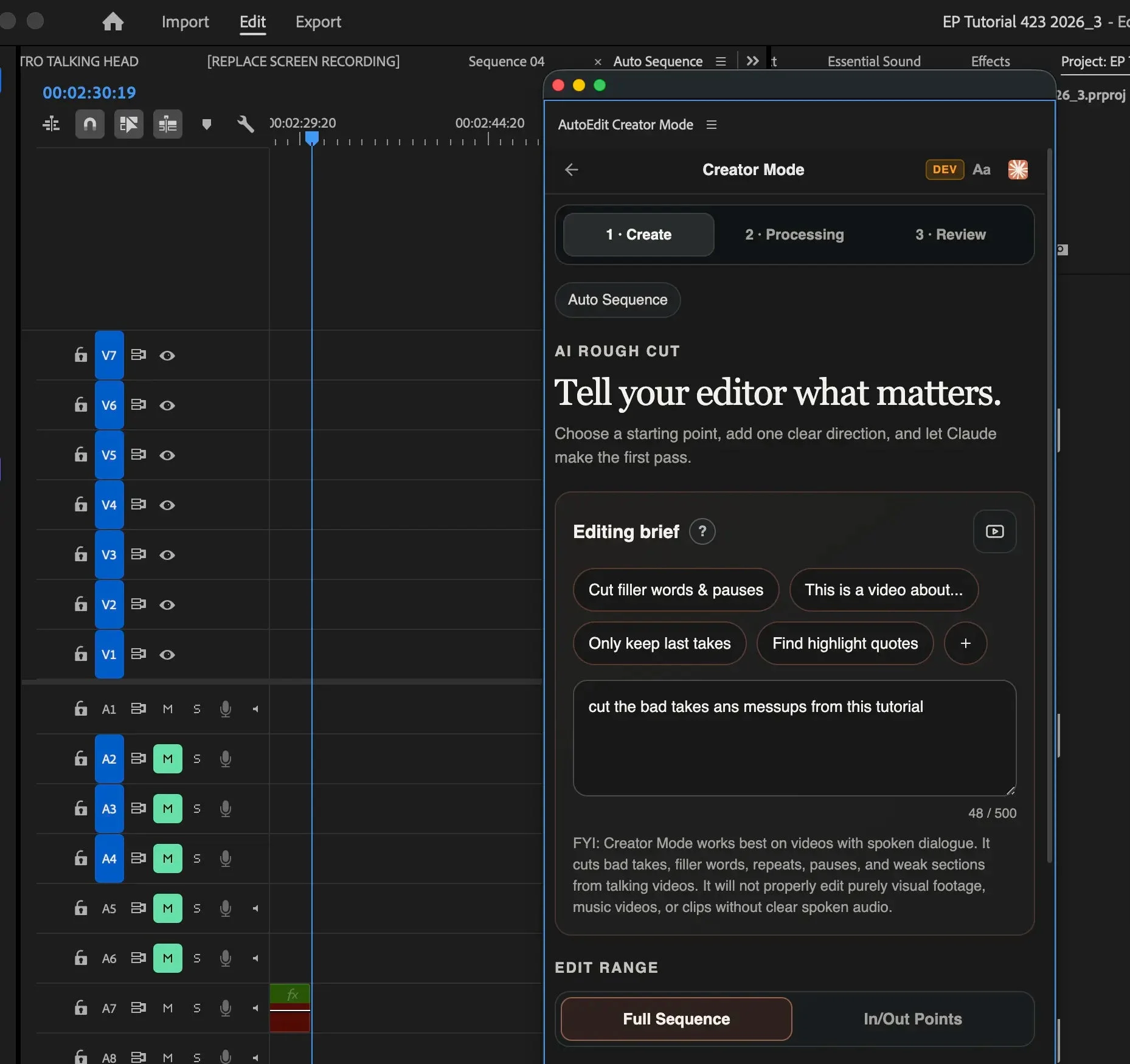
AutoEdit Creator Mode is built for production agency editors handling client footage working with spoken footage in Premiere Pro. You give it an editing brief, and Claude helps make the first pass through bad takes, repeats, filler words, pauses, and weak sections. The result stays on an editable Premiere timeline, so you can change every cut instead of accepting a locked export. It is strongest on talking heads, tutorials, interviews, podcasts, and other videos with clear dialogue—not silent montages.
The useful part is not pretending Claude has taste. Claude acts more like a handyman using Premiere Pro tools: it handles a defined first-pass job, then the editor takes over for the hook, pacing, B-roll, captions, sound, color, graphics, and client notes.
- Best for: dialogue-heavy first cuts
- Keeps the sequence editable in Premiere Pro
- Can follow a plain-English editing brief
- Still requires a complete editor review
2. Spread by Rhys Obasi
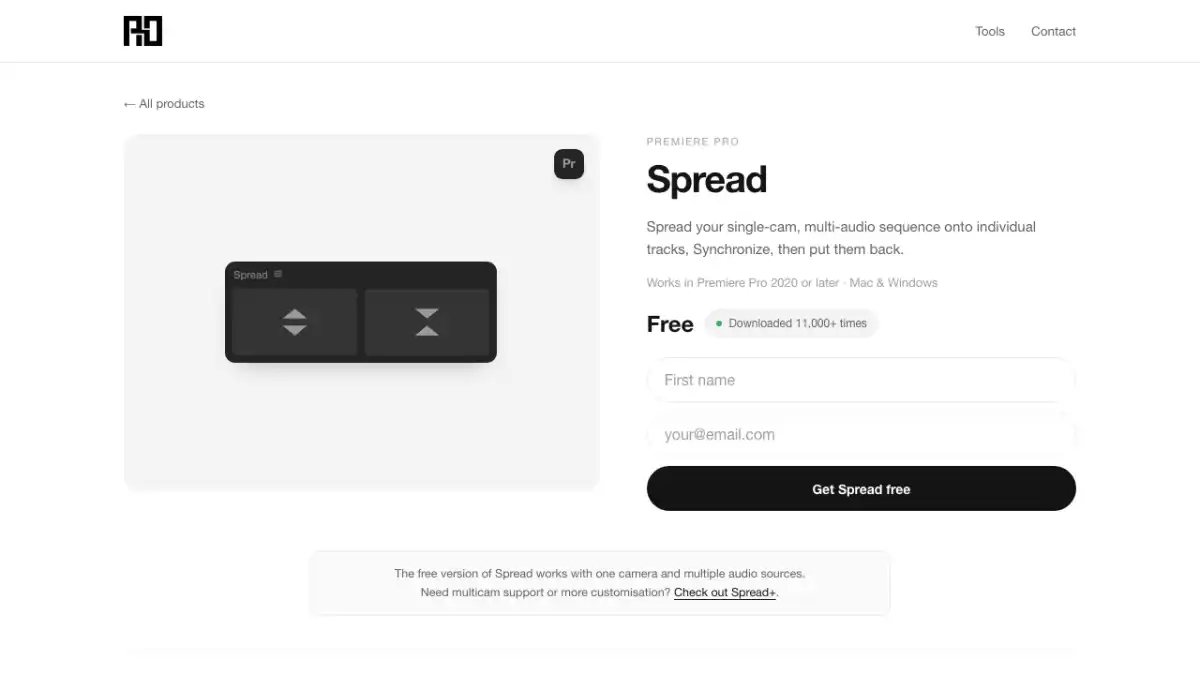
Spread solves one specific multicam setup problem: clips that need to sit on separate video tracks before Premiere can synchronize them. Rhys Obasi’s extension distributes the selected clips across tracks, so you can continue with Premiere Pro’s normal sync and multicam tools. It does not switch camera angles or decide the edit for you.
This earns a high spot for agency, podcast, and interview editors because the task is dull, predictable, and easy to repeat incorrectly by hand. If you rarely receive multi-camera footage, you may never need it.
- Best for: preparing interview, podcast, and event clips for multicam sync
- Spreads selected clips across separate tracks
- Works before Premiere Pro’s regular synchronization step
- Narrow tool with a clear job
3. Premiere Gal Toolkit by Kelsey Brannan
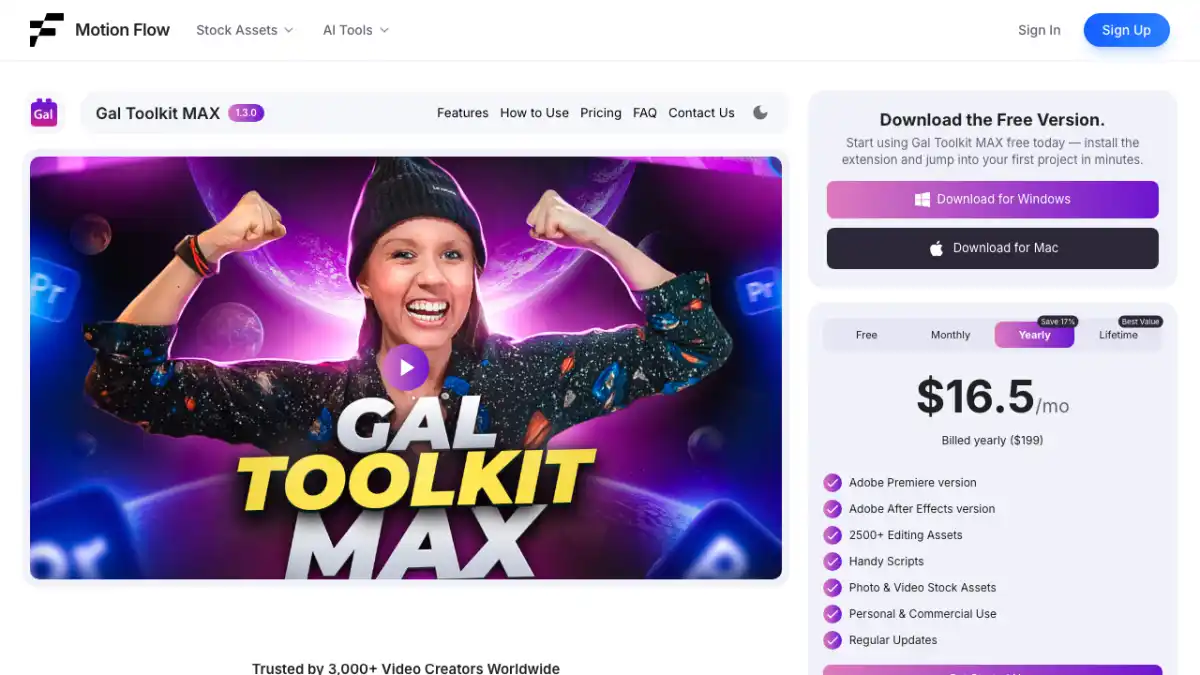
Premiere Gal Toolkit is the broad utility pick. Kelsey Brannan packages reusable presets, effects, transitions, graphics, and templates for editors who do not want to rebuild the same visual treatment on every job. It is most useful when your week includes several formats—YouTube videos, Shorts, explainers, and client social posts—and you need a reliable starting point for each one.
A large library is only useful if you can find what you need and change it to fit the channel. Treat these assets as editable building blocks, not a house style. The client should not be able to recognize the default preset pack in every upload.
- Best for: editors who need one broad pack for several formats
- Includes reusable graphics, effects, presets, and templates
- Useful for both newer editors and busy client editors
- Customize fonts, timing, colors, and motion to match the channel
4. FastFX by Jakob at Tiny Tapes
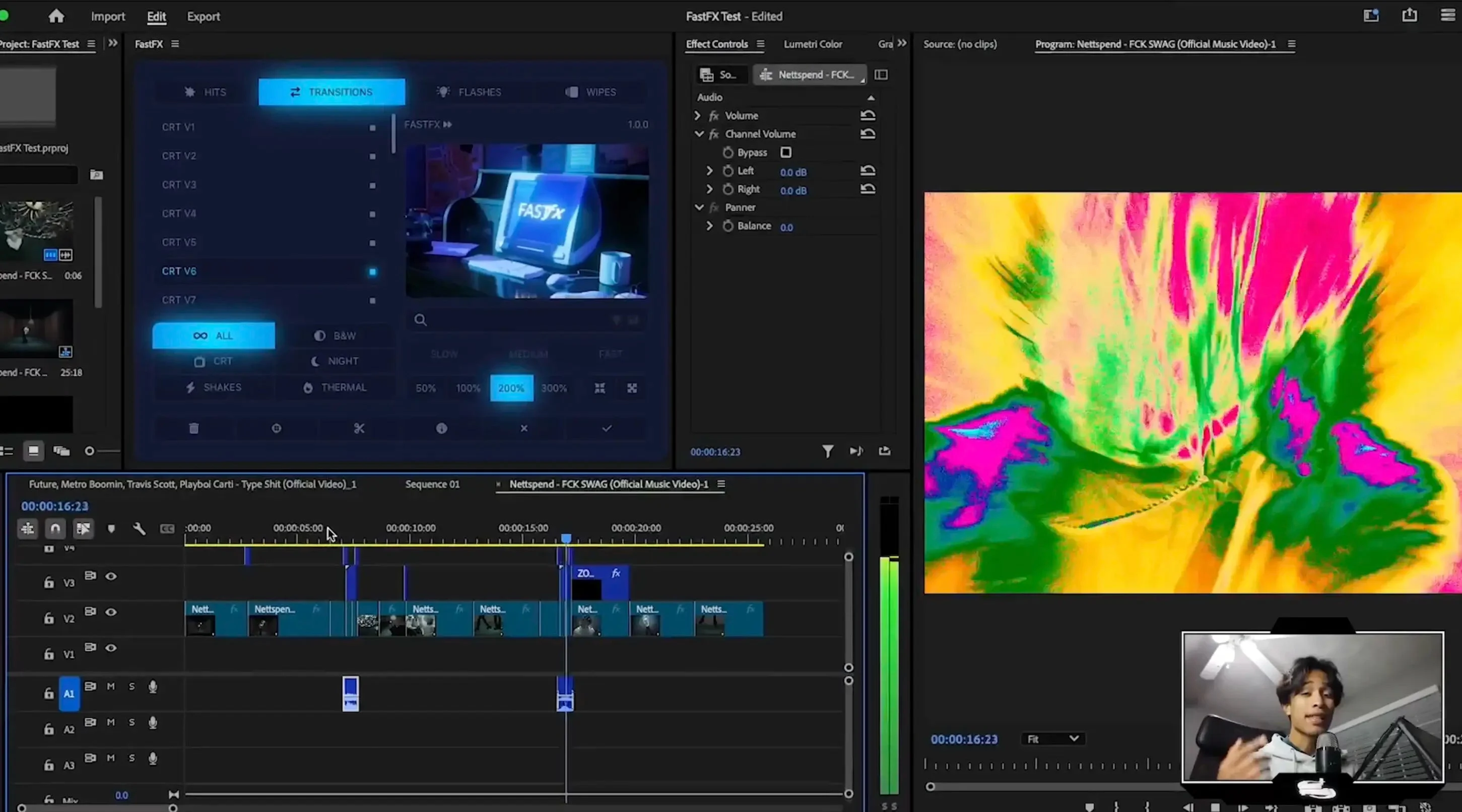
FastFX is for edits that need visible energy: music videos, sports cuts, car content, commercials, trailers, and hard-hitting social clips. Jakob built the panel around hits, transitions, flashes, wipes, shakes, CRT looks, black-and-white treatments, night vision, thermal effects, zooms, and speed changes. Put the playhead on a cut, select the clips, apply the effect, and FastFX builds it with editable adjustment layers instead of flattening it into the footage.
This is a specialized tool, which is why it belongs below AutoEdit on these lists. It can save setup time when that style is already in the brief, but it is overkill for a clean interview. Leave spare video tracks above the source clips and an audio track available because some effects include sound design.
- Best for: music videos, sports, automotive, and high-energy ads
- Effects remain adjustable after they are applied
- Includes transitions, hits, flashes, wipes, stylized looks, and speed tools
- Referral link: Devin may receive credit if you buy through it
5. Copy Pasta by Danny at Plugin Play
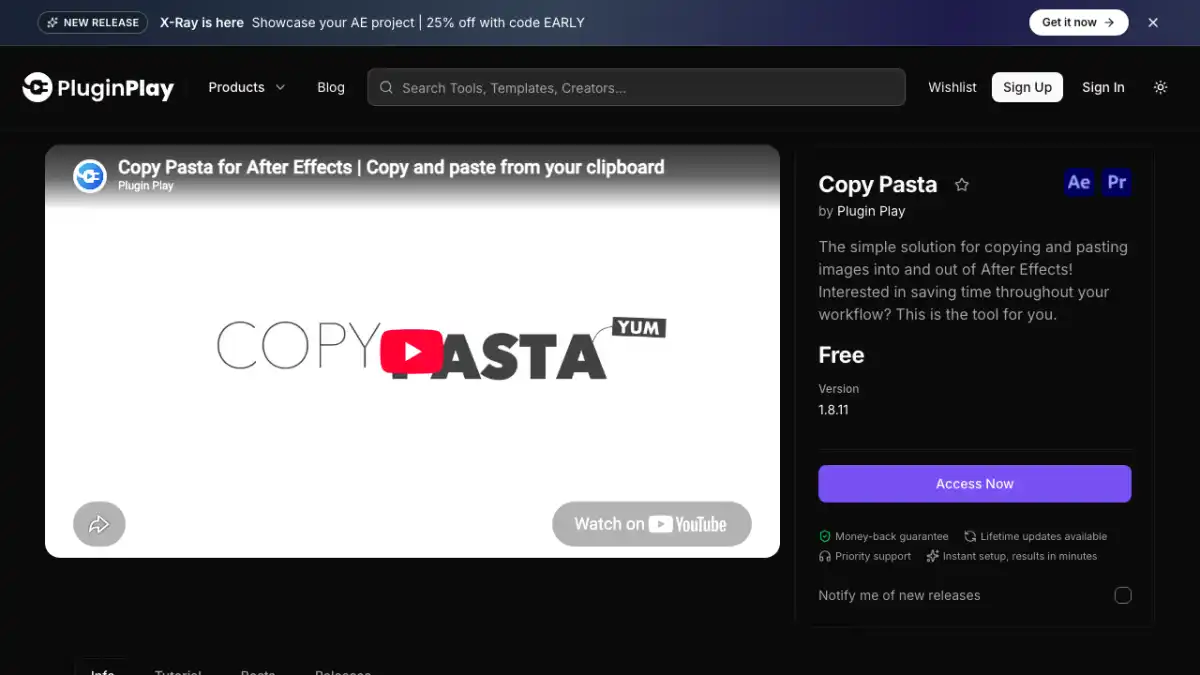
Copy Pasta fixes a tiny task that gets annoying after the twentieth screenshot. Danny built it so you can copy an image from a browser, message, or reference board and paste it directly into Premiere Pro. That skips the download, rename, import, and cleanup loop when you are adding memes, screenshots, product shots, or visual references to a creator edit.
It is not a giant AI editor, and that is the point. Freelance and YouTube jobs are full of small interruptions, and this removes a common interruption without changing how the timeline works.
- Best for: screenshots, memes, product images, and reference stills
- Pastes copied images directly into Premiere Pro
- Cuts out the temporary download-and-import step
- Simple enough to use on almost any creator project
6. Dagger by Knights of the Editing Table
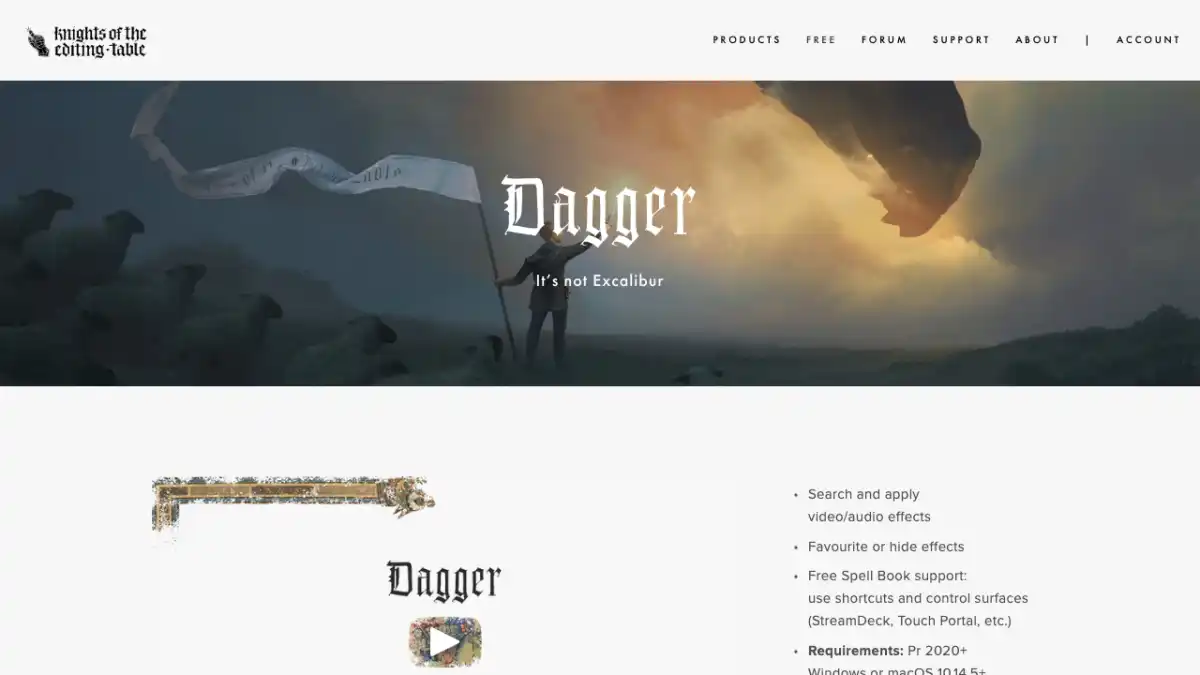
Dagger gives Premiere Pro a shortcut-driven way to search for an effect and apply it to the selected clip. That is useful once you know the effect you want and do not want to break focus by opening folders in the Effects panel. It is a small speed tool, not a creative decision-maker, so it ranks below plugins that remove a larger chunk of work.
Set the shortcut somewhere comfortable, type the effect name, and press Enter. Editors who touch dozens of clips in a session will feel the benefit more than someone making one or two effect changes.
- Best for: fast effect lookup and application
- Works well for editors who stay on keyboard shortcuts
- Does not choose the right effect for the edit
- Confirm current terms on the official page
The final paid-plugin tier list
| Tier | Plugin | Best for |
|---|---|---|
| S | AutoEdit Creator Mode | Dialogue-led first cuts inside Premiere Pro |
| A | FastFX | High-energy effects and transitions |
| A | Premiere Gal Toolkit | Reusable graphics and templates |
| A | Spread | Multicam preparation |
| B | Copy Pasta | Faster image handling |
| B | Dagger | Shortcut-driven effect search |
Tips
- Install the plugin that fixes a job you already repeat.
- Test it on a duplicate sequence with normal client footage.
- Count correction time before deciding a tool is faster.
Common mistakes
- Buying a plugin because the demo looks good but the task rarely appears in your work.
- Treating an automatic first pass as a finished edit.
- Using the default preset style on every client or channel.
Frequently asked questions
Will a Premiere Pro plugin finish the edit for me?
No. A useful plugin handles a defined job and leaves the result editable. The editor still owns story, timing, music, camera choices, graphics, sound, color, factual accuracy, client notes, and export.
Should I install every plugin on this list?
No. Start with the repeated task that wastes the most time on your real projects. Test one plugin on a duplicate sequence, check the result, and add another only when it solves a different problem.
How did you rank the plugins?
The ranking weighs how often the tool is useful, how clearly it solves one editing task, whether the result stays editable, and how much checking or cleanup it creates afterward.
Which plugin is best for a multicamera agency shoot?
Spread is useful for distributing clips across tracks before Premiere Pro synchronization. It prepares the media; the editor still handles sync checks, angle choices, story, and the finished multicam cut.
Sources and verification
External product claims were checked against these first-party sources.
The plugin walkthrough shows AutoEdit, Dagger, DisplayX, Spread, Premiere Gal Toolkit, and Copy Pasta being used for real Premiere Pro jobs.
AutoEdit Creator Mode is the official page for the dialogue-led Premiere Pro editor.
FastFX by Tiny Tapes is Devin’s referral link for Jakob’s Premiere Pro effects panel.
Copy Pasta by Plugin Play is the official page for Danny’s image-pasting extension.
Premiere Gal Toolkit is the official page for Kelsey Brannan’s Premiere Pro toolkit.