Claude Motion vs Free Premiere Pro Motion Graphics
Claude Motion creates a custom animation from prompts and references; AutoEdit supplies pre-animated templates inside Premiere Pro. The comparison weighs creative flexibility against generation time, export steps, and template limits.



The October 20 comparison asks a practical editing question: do you need a new animation designed from a prompt, or a good existing animation that you can customize quickly? Those are different jobs, even when the final result is a title or motion graphic in the same Premiere Pro sequence.
This article follows the video’s examples rather than treating either tool as a universal replacement. References to Claude Motion access and waiting time describe the recorded test, not a promise about current availability or performance.
Quick Answer
Claude Motion creates a custom animation from prompts and references; AutoEdit supplies pre-animated templates inside Premiere Pro. The comparison weighs creative flexibility against generation time, export steps, and template limits.
What is the core difference between these workflows?
The video demonstrates AutoEdit’s Motion Graphics library as a collection of prebuilt MOGRT templates. Their animation structure already exists. The editor chooses a treatment and changes the exposed text, media, color, size, or other controls.
Claude Motion is shown creating an animation from a written brief and visual references. The presenter describes the output as code-based animation rather than generated live-action footage. This makes it useful for designing a visual sequence that does not already exist as a suitable template.
The choice therefore starts with the brief. A recurring chapter label usually does not need a new design system. A custom product demonstration may need a sequence of states and transitions that an existing title template cannot provide.
What is AutoEdit?
See how AutoEdit handles repetitive editing work inside Premiere Pro while keeping the resulting timeline editable.
How does the free Premiere Pro template workflow work?
Install Creator Mode, restart Premiere Pro, and open the extension from the Window menu. In the free Motion Graphics library, preview a template and apply it to the timeline. The comparison shows text animations, caption-style treatments, chapter callouts, and icon-based graphics.
The presenter replaces icons with other PNG images and adjusts scale. This is useful when the motion is already appropriate and only the content needs changing. You can keep a familiar animation style across several videos without designing every transition again.
The limit is the structure of the template. Replacing an icon does not turn an existing three-icon composition into an arbitrary animated diagram. Check the exposed controls before deciding that a template can satisfy a more specific brief.
How does the Claude Motion example use prompts and references?
The presenter builds a brief from landing-page copy and supplies screenshots of the plugin as visual references. The goal is an animation that represents a specific product rather than a generic title.
The demonstration then revises the result with instructions about style and color. A useful brief should identify the message, the assets that need to remain recognizable, and the order of ideas. Review each revision against that brief rather than judging only whether the movement looks impressive.
In the recording, Motion Beta is opened through Claude’s Artifacts area. The presenter describes access restrictions applicable during the October test. Check Anthropic’s current product information before making a purchase decision; this walkthrough does not establish today’s plan requirements.
Where does the animation remain editable?
The template workflow stays inside Premiere Pro. The editor applies the graphic and adjusts the available properties in the project. This is convenient when a client changes a word or an icon late in the edit.
The Claude Motion workflow shown in the comparison involves exporting the animation, downloading the file, and importing that rendered result into Premiere Pro. A change to the underlying animation requires returning to the source workflow and producing an updated render.
That difference matters more than a simple editable-versus-not-editable label. Both source workflows allow changes, but the place where you make those changes differs. Account for the full revision loop when choosing a method for a deadline-sensitive project.
What did the test show about speed and cost?
The presenter reports waits of roughly four to ten minutes for some more detailed Claude Motion examples. Treat those as observations from the recorded session, not a measured benchmark or a guarantee for a different animation.
The AutoEdit templates already contain their animation, so the demonstrated task is selection, placement, and customization. That can be a more direct route when the library contains a suitable design. It does not prove that every template choice will be faster than every custom generation.
The video contrasts the free template library with the account access described for Claude Motion at the time. This article deliberately avoids repeating a subscription price as a current quote. Compare the present terms with your actual need for custom animation.
Which approach should you choose for a real edit?
Choose a template when the animation style already fits: a caption treatment, title, chapter marker, or recurring icon callout. Customize it enough to match the content and avoid covering information the viewer needs to see.
Use a custom-generation workflow when the brief needs a unique visual explanation, such as a product sequence or a specific chart. Budget time for prompting, correction, exporting, and re-importing, and confirm that the rendered result works at the intended frame rate and size.
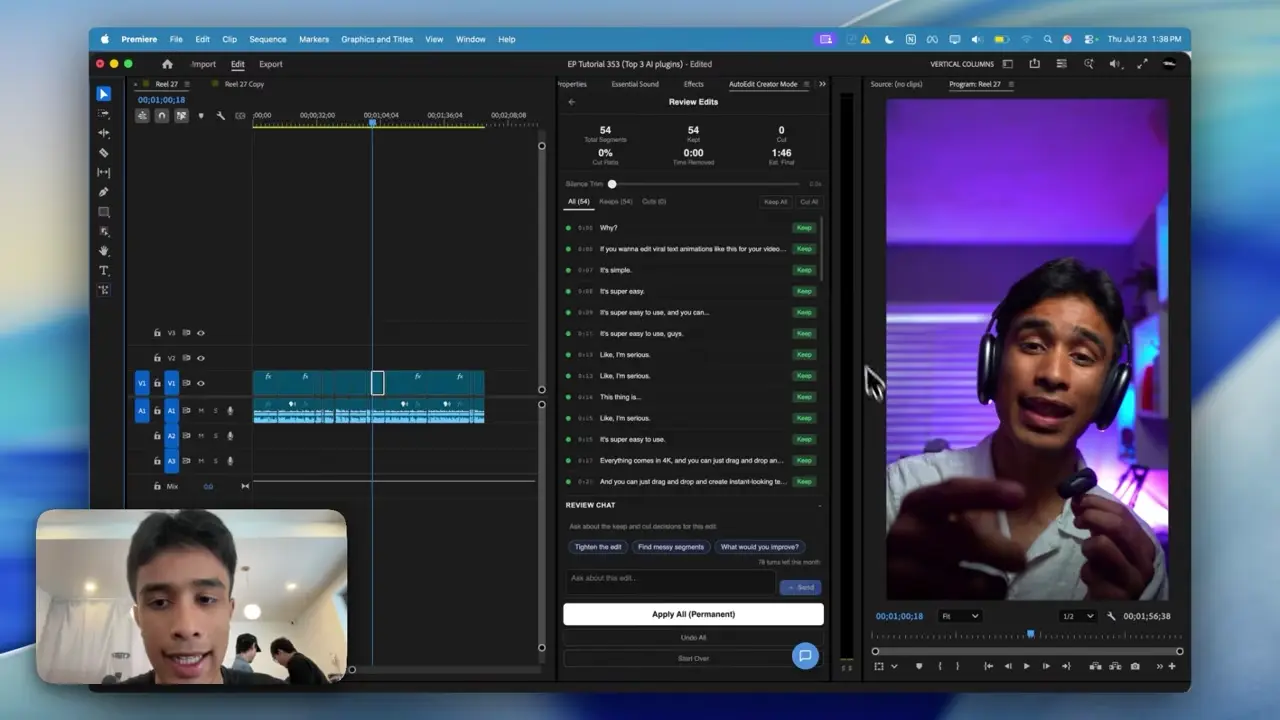
The comparison also shows Claude-powered rough-cut editing inside AutoEdit. That is a separate feature from the motion-graphics library. It concerns spoken-footage editing decisions, not generating new animations. Watch the source video below to see the distinction in the actual interface.
Tips
- Choose based on the required animation structure.
- Include revision and export time when comparing workflows.
Common mistakes
- Assuming template customization means unlimited animation redesign.
- Confusing Claude rough-cut editing with motion-graphic generation.
Try the workflow
Free tools for this article
Use the most relevant free tool for the task, then continue with the rest of your edit.
 Free YouTube Title GeneratorTurn a loose video idea into clear YouTube title options without overthinking the upload.Free YouTube Chapter GeneratorTurn a timestamped transcript into a clean first pass of YouTube chapters.Free Premiere Pro Checklist GeneratorCreate a project checklist from backup and stringout through V1, revisions, and final export.
Video walkthrough
Claude Motion vs FREE Premiere Pro Motion Graphics (Which Is Better?)
Watch this walkthrough to see the steps in Premiere Pro, then compare the demonstrated settings and results with your own footage before applying them to a full project.
Watch Claude Motion vs FREE Premiere Pro Motion Graphics (Which Is Better?) on YouTube
Continue in Premiere Pro
Explore AutoEdit Creator Mode
Build an editable starting point, then keep creative control of the timeline.
Explore AutoEdit Creator ModeFrequently asked questions
Does AutoEdit generate every motion graphic from a prompt?
The comparison shows pre-animated MOGRT templates with customization controls. It distinguishes these from Claude Motion’s prompt-generated animations.
Can I change icons in the AutoEdit templates?
The demonstrated icon templates allow replacement media and scale adjustments. Available controls depend on the template.
Does Claude Motion export directly into Premiere Pro?
The recorded workflow exports an animation file, downloads it, and imports it into Premiere Pro. The AutoEdit template example applies the asset directly inside the editor.
Sources and verification
External product claims were checked against these first-party sources.
Original Eleven Percent video tutorial is the source for this written walkthrough, including the demonstrated controls, examples, and limitations.