
Best free Premiere Pro plugins for video editors who work for YouTube creators
A useful free-plugin tier list for editors cutting long-form YouTube videos, Shorts, podcasts, interviews, tutorials, and creator content.

Best free Premiere Pro plugins for video editors who work for YouTube creators
AI-assisted workflows inside Premiere ProIf you edit videos for YouTube creators, the job is rarely just “cut the video.” You may be cleaning a forty-minute talking head, finding screenshots, building captions, cutting Shorts, matching a reference, and turning around revisions before the next upload date.
This list ranks free plugins by the actual task they remove. The full walkthrough is directly below so you can see the tools before reading the individual breakdowns.
Quick Answer
Start with AutoEdit’s free tools for repeated creator-edit jobs. Add Premiere Gal Toolkit for reusable assets, Copy Pasta for images, Spread for multicam setup, DisplayX for references, and Dagger for faster effect search.
Video walkthrough
The Premiere Pro plugins I actually use
1. AutoEdit free Premiere Pro tools by Eleven Percent
AutoEdit takes the top spot because its free Premiere Pro download covers several jobs YouTube editors repeat every week. The current tool set includes Silence Cutter, reusable motion graphics, sound effects, image pasting, and a saved B-roll library. Those tools are useful whether the channel publishes talking heads, tutorials, podcasts, reaction videos, or Shorts.
The free tools do not turn raw footage into a finished upload. They remove small pieces of timeline work so the editor has more time for structure, jokes, pacing, B-roll choices, sound, and the creator’s notes.
- Best for: recurring cleanup and asset tasks in creator edits
- Includes focused tools rather than one giant automatic button
- Runs inside Premiere Pro
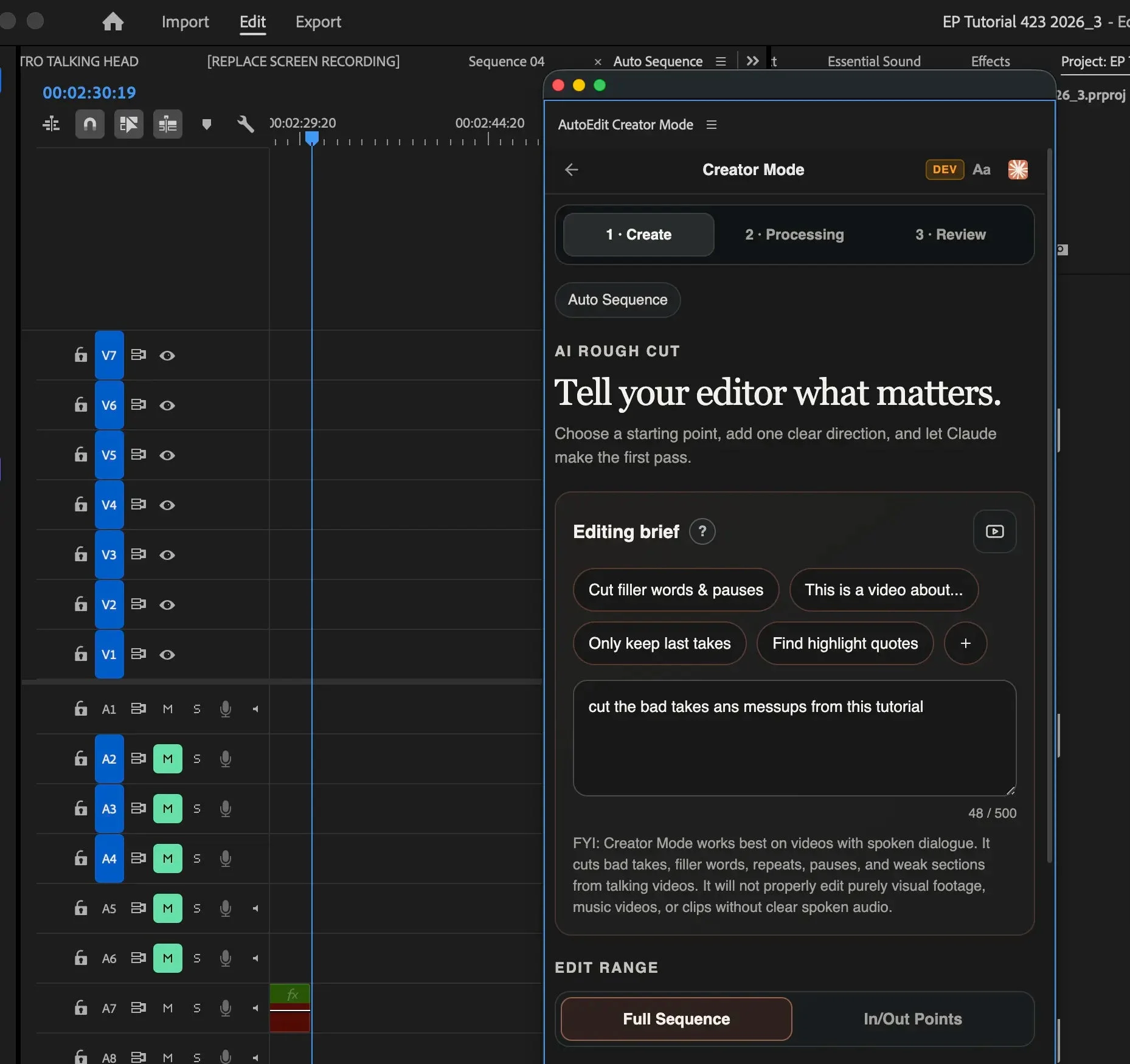
- Creator Mode is a separate paid option for dialogue-led first cuts
2. Premiere Gal Toolkit by Kelsey Brannan
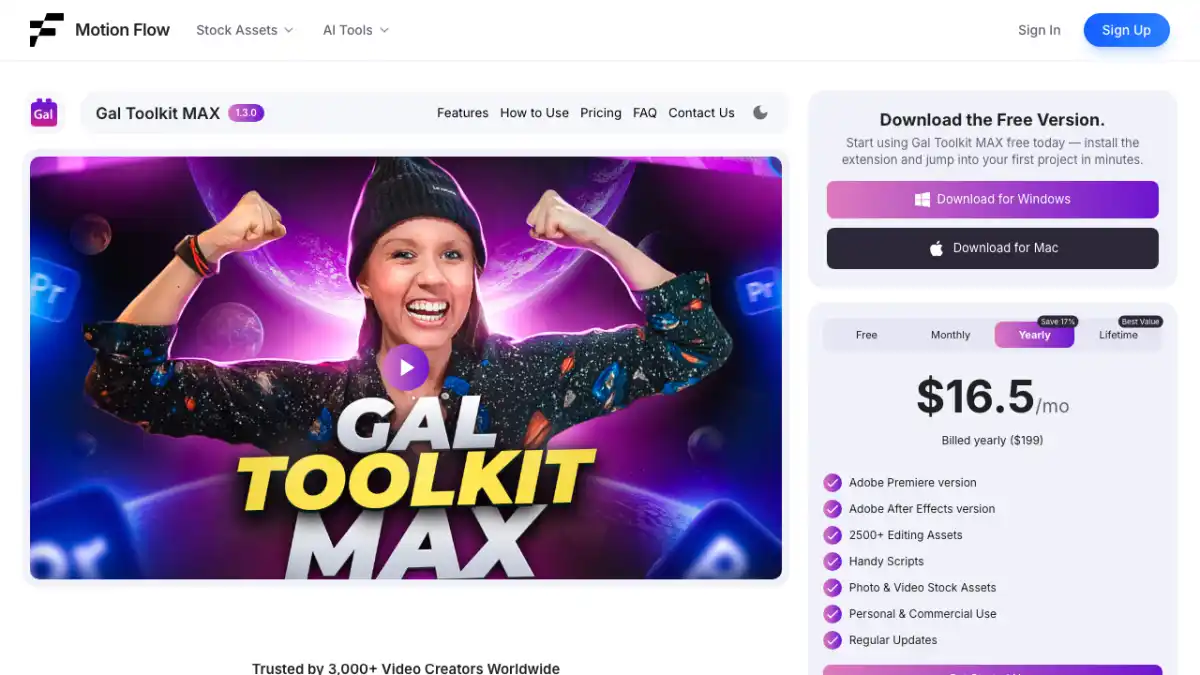
Premiere Gal Toolkit is the broad utility pick. Kelsey Brannan packages reusable presets, effects, transitions, graphics, and templates for editors who do not want to rebuild the same visual treatment on every job. It is most useful when your week includes several formats—YouTube videos, Shorts, explainers, and client social posts—and you need a reliable starting point for each one.
A large library is only useful if you can find what you need and change it to fit the channel. Treat these assets as editable building blocks, not a house style. The client should not be able to recognize the default preset pack in every upload.
- Best for: editors who need one broad pack for several formats
- Includes reusable graphics, effects, presets, and templates
- Useful for both newer editors and busy client editors
- Customize fonts, timing, colors, and motion to match the channel
3. Copy Pasta by Danny at Plugin Play
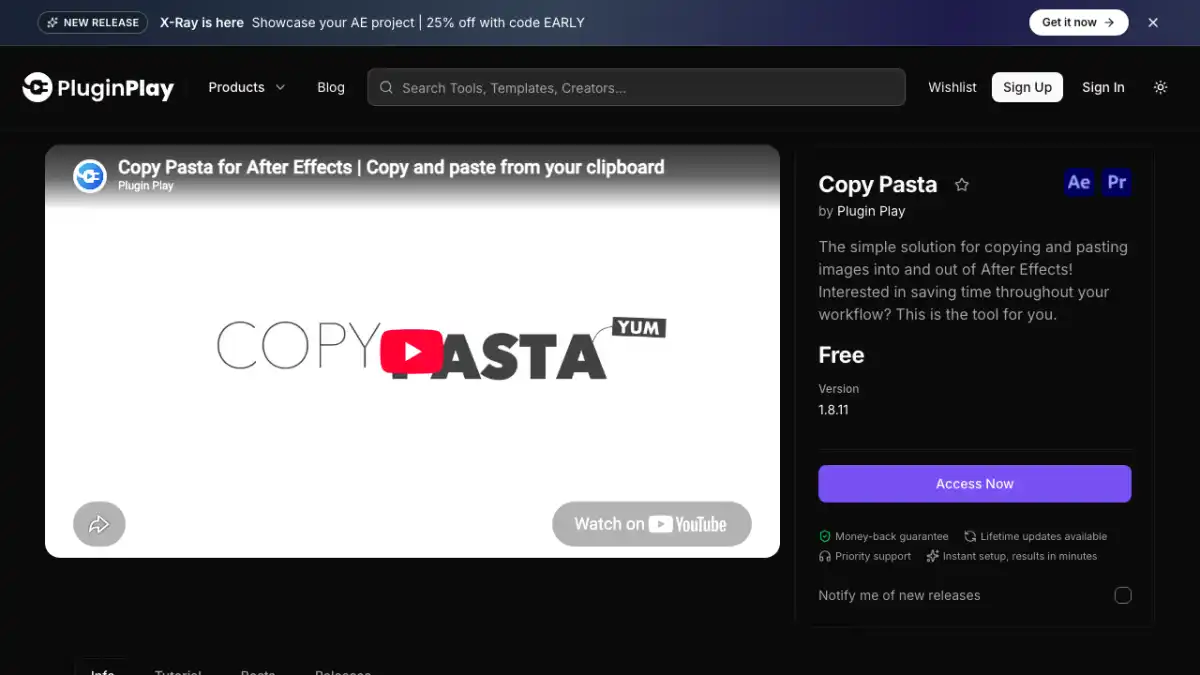
Copy Pasta fixes a tiny task that gets annoying after the twentieth screenshot. Danny built it so you can copy an image from a browser, message, or reference board and paste it directly into Premiere Pro. That skips the download, rename, import, and cleanup loop when you are adding memes, screenshots, product shots, or visual references to a creator edit.
It is not a giant AI editor, and that is the point. Freelance and YouTube jobs are full of small interruptions, and this removes a common interruption without changing how the timeline works.
- Best for: screenshots, memes, product images, and reference stills
- Pastes copied images directly into Premiere Pro
- Cuts out the temporary download-and-import step
- Simple enough to use on almost any creator project
4. Spread by Rhys Obasi
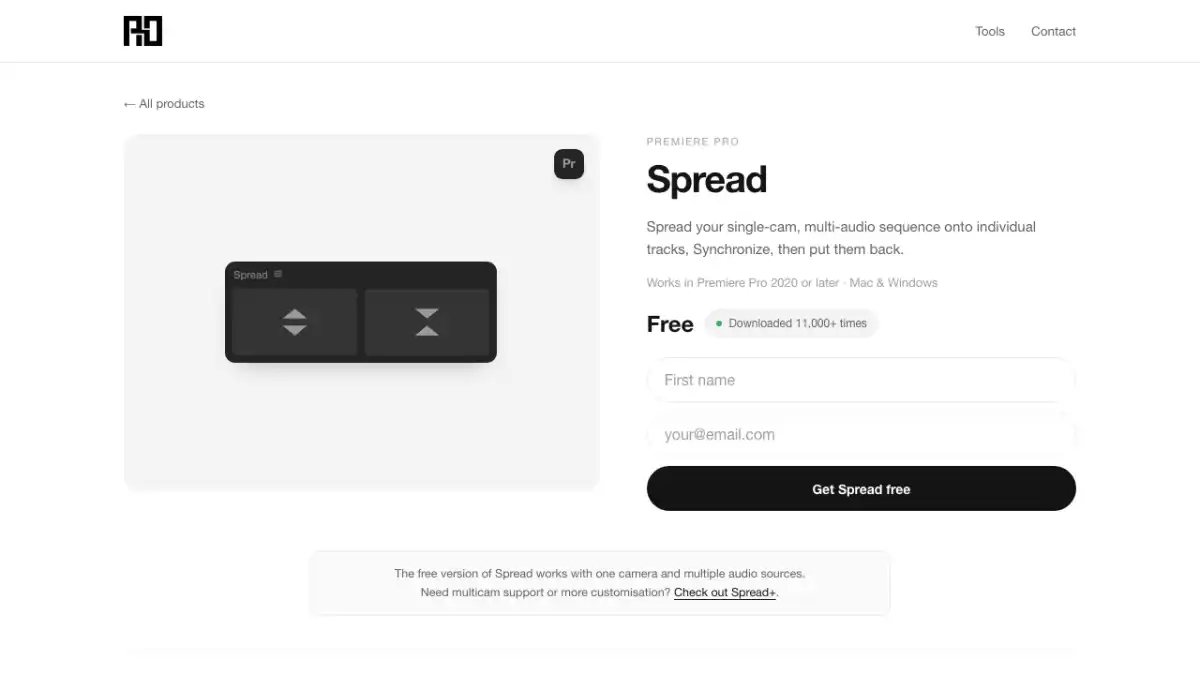
Spread solves one specific multicam setup problem: clips that need to sit on separate video tracks before Premiere can synchronize them. Rhys Obasi’s extension distributes the selected clips across tracks, so you can continue with Premiere Pro’s normal sync and multicam tools. It does not switch camera angles or decide the edit for you.
This earns a high spot for agency, podcast, and interview editors because the task is dull, predictable, and easy to repeat incorrectly by hand. If you rarely receive multi-camera footage, you may never need it.
- Best for: preparing interview, podcast, and event clips for multicam sync
- Spreads selected clips across separate tracks
- Works before Premiere Pro’s regular synchronization step
- Narrow tool with a clear job
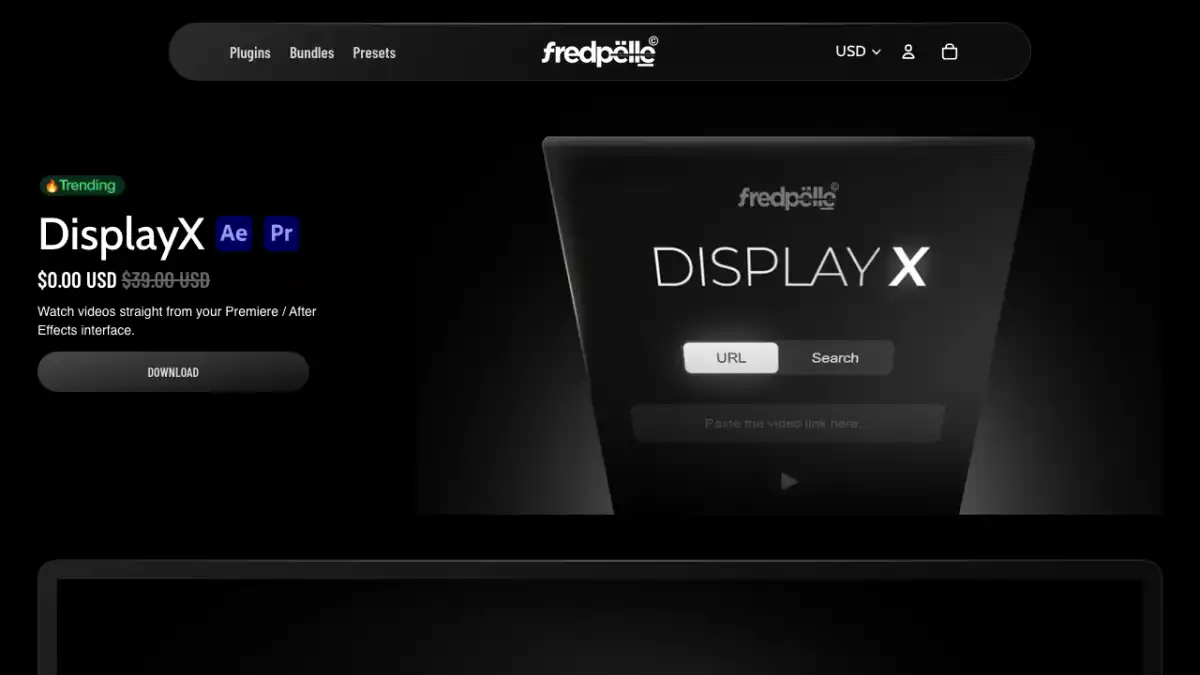
5. DisplayX by Fred Pelle
DisplayX lets you watch YouTube inside Premiere Pro. Fred Pelle’s extension is handy when a client sends a reference, you are following an effect tutorial, or a producer asks you to match the pacing of another upload. Keeping the reference beside the timeline means less app switching and fewer lost playhead positions.
It does not download or copy someone else’s video into your project. Think of it as a docked reference player for the normal research and learning that happens during an edit.
- Best for: tutorials, client references, and pacing studies
- Keeps YouTube playback inside Premiere Pro
- Useful when the edit and reference must stay visible together
- Does not replace rights clearance or media management
6. Dagger by Knights of the Editing Table
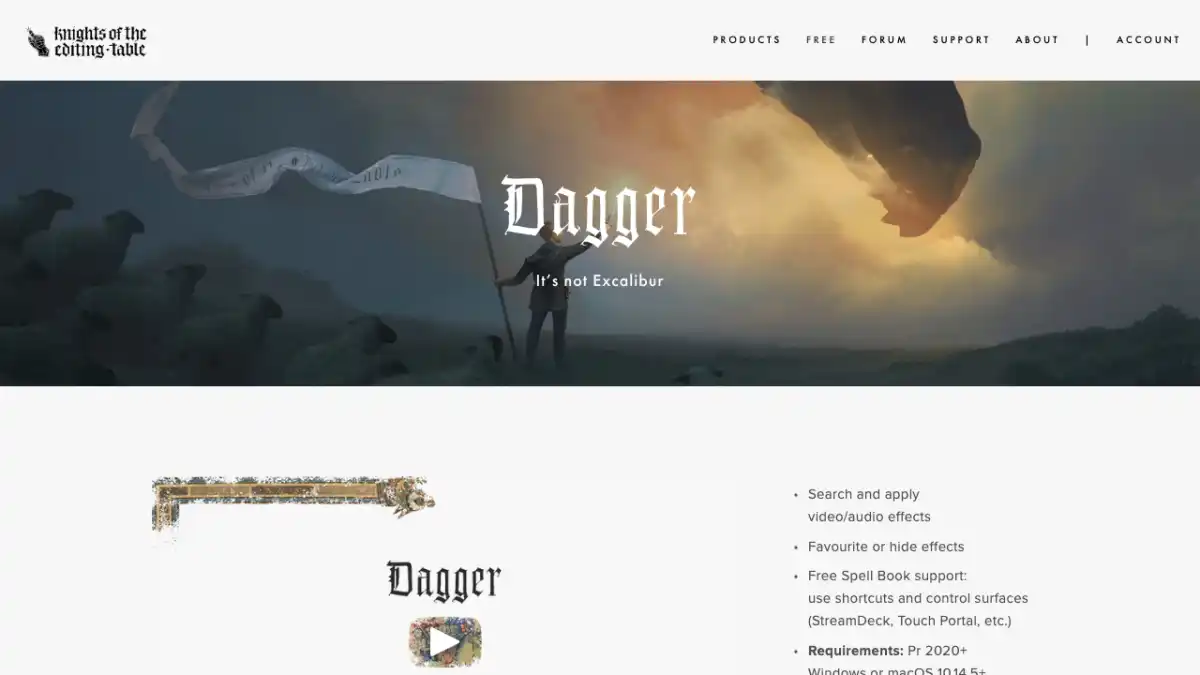
Dagger gives Premiere Pro a shortcut-driven way to search for an effect and apply it to the selected clip. That is useful once you know the effect you want and do not want to break focus by opening folders in the Effects panel. It is a small speed tool, not a creative decision-maker, so it ranks below plugins that remove a larger chunk of work.
Set the shortcut somewhere comfortable, type the effect name, and press Enter. Editors who touch dozens of clips in a session will feel the benefit more than someone making one or two effect changes.
- Best for: fast effect lookup and application
- Works well for editors who stay on keyboard shortcuts
- Does not choose the right effect for the edit
- Confirm current terms on the official page
The final free-plugin tier list
| Tier | Plugin | Best for |
|---|---|---|
| S | AutoEdit free tools | Silence cuts, reusable assets, sound effects, and common creator-edit jobs |
| A | Premiere Gal Toolkit | A broad set of reusable Premiere Pro assets |
| A | Copy Pasta | Pasting images directly into a project |
| A | Spread | Preparing multi-camera clips for sync |
| B | DisplayX | Keeping YouTube references beside the edit |
| B | Dagger | Finding and applying effects faster |
Tips
- Install the plugin that fixes a job you already repeat.
- Test it on a duplicate sequence with normal client footage.
- Count correction time before deciding a tool is faster.
Common mistakes
- Buying a plugin because the demo looks good but the task rarely appears in your work.
- Treating an automatic first pass as a finished edit.
- Using the default preset style on every client or channel.
Frequently asked questions
Will a Premiere Pro plugin finish the edit for me?
No. A useful plugin handles a defined job and leaves the result editable. The editor still owns story, timing, music, camera choices, graphics, sound, color, factual accuracy, client notes, and export.
Should I install every plugin on this list?
No. Start with the repeated task that wastes the most time on your real projects. Test one plugin on a duplicate sequence, check the result, and add another only when it solves a different problem.
How did you rank the plugins?
The ranking weighs how often the tool is useful, how clearly it solves one editing task, whether the result stays editable, and how much checking or cleanup it creates afterward.
Are all of these plugins free?
They offered a free download or free functionality when this article was reviewed. Some developers also sell paid products. Check the official link for current licensing and Premiere Pro compatibility.
Sources and verification
External product claims were checked against these first-party sources.
The plugin walkthrough shows AutoEdit, Dagger, DisplayX, Spread, Premiere Gal Toolkit, and Copy Pasta being used for real Premiere Pro jobs.
AutoEdit Creator Mode is the official page for the dialogue-led Premiere Pro editor.
FastFX by Tiny Tapes is Devin’s referral link for Jakob’s Premiere Pro effects panel.
Copy Pasta by Plugin Play is the official page for Danny’s image-pasting extension.
Premiere Gal Toolkit is the official page for Kelsey Brannan’s Premiere Pro toolkit.