
From Raw Footage to a Rough Cut With AI in Premiere Pro
A straight Premiere Pro guide for editors who want to move from raw spoken footage to an editable first rough cut inside Premiere Pro, with the actual plugin, timeline, and cuts explained in plain English.

From Raw Footage to a Rough Cut With AI in Premiere Pro
AI-assisted workflows inside Premiere ProMost people asking about automated video editing for premiere pro are not looking for another chatbot. They want to know whether Claude can put real cuts on a Premiere Pro timeline.
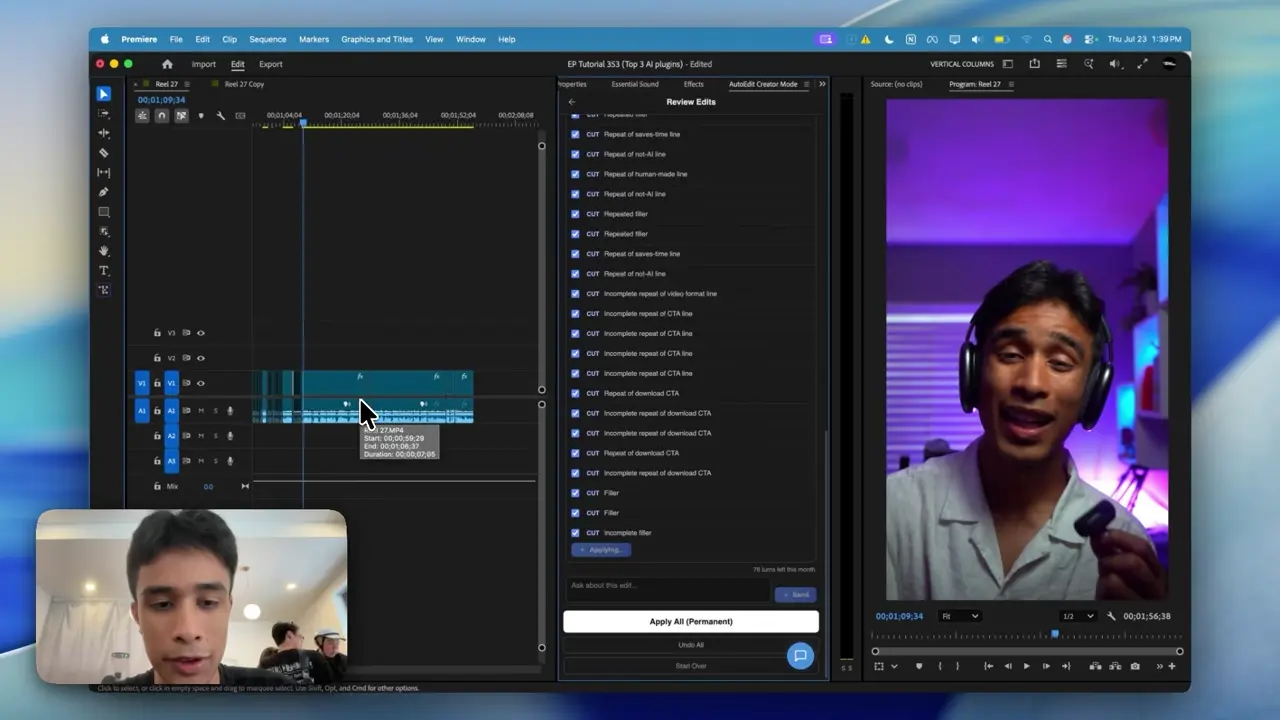
The easiest way to think about it is this: Claude is the handyman and Premiere Pro has the tools. AutoEdit brings Claude into Premiere, so it can read the transcript, help with the rough cut, and leave you with a normal timeline you can keep editing.
September 2026 update: the free Premiere Pro plugin walkthrough below demonstrates current tools for effect search, image imports, silence cleanup, and editable first-pass workflows. Check each tool against the specific job in this guide.
Quick Answer
To automatically edit videos in Premiere Pro with AI, organize the footage, duplicate the sequence, remove obvious silence, then use AutoEdit Creator Mode to analyze the transcript and propose rough-cut decisions. Review repeated takes, filler words, and context before applying the automatic edits, then finish visuals and sound manually.
What footage should you start with?
Automatic editing works best when the sequence has a clear structure. For Creator Mode, begin with synchronized, audible talking-head, tutorial, interview, or podcast footage. Separate montage-only sections that need visual judgment.
Step by step: automatic video editing in Premiere Pro
1. Organize and synchronize
Prepare the correct clips, linked audio, and one clearly named source sequence.
2. Duplicate the sequence
Keep the untouched assembly available for comparison.
3. Remove obvious silences
Make the spoken sequence more compact while preserving intentional pauses.
4. Run transcript analysis
Ask Chat Edit to flag repeats, filler words, restarts, or a defined topic.
5. Preview and apply
Inspect every important decision before creating the automatic rough cut.
6. Finish the edit
Add B-roll, captions, graphics, music, sound, color, and final quality checks.
Which tasks are practical to automate?
- Silence and dead-air cleanup
- Repeated-take identification
- Selected filler-word removal
- Transcript-led first assemblies
- Caption and podcast starting workflows
Which automatic edits need the closest review?
- Cuts around emotional pauses
- Short transcript fragments without context
- Linked overlays and screen recordings
- Product claims, names, numbers, and teaching steps
- Camera and audio sync after ripple changes
How do you judge automatic editing quality?
A useful automatic edit reduces total work and leaves a clear sequence. Watch the entire result, compare it with the source, and count manual corrections. A first pass that appears instantly but needs extensive repair is not faster.
What should the final automated result look like?
The expected result is a coherent rough cut ready for normal creative editing. It should not be treated as an unattended final export or published without a full watch.
Tips
- Work on a duplicate sequence.
- Ask for one clear edit at a time.
- Watch the cut and count how much you actually have to fix.
Common mistakes
- Treating the rough draft like a finished edit.
- Using transcript tools on clips that need visual selects.
- Exporting without watching every automatic cut.
Try the workflow
Free tools for this article
Use the most relevant free tool for the task, then continue with the rest of your edit.
 Free Podcast Name GeneratorGenerate podcast-name directions that fit the topic, host, and audience.Free Podcast Show Notes GeneratorTurn a podcast transcript into structured show notes, takeaways, and chapter ideas.
Video walkthrough
How to Use Claude AI to Automatically Edit in Premiere Pro
6 Free Premiere Pro Plugins That Actually Save You Time
Continue in Premiere Pro
Explore AutoEdit Creator Mode
Build an editable starting point, then keep creative control of the timeline.
Explore AutoEdit Creator ModeFrequently asked questions
Can Premiere Pro edit a video automatically?
Premiere Pro and integrated plugins can automate defined tasks, but the final sequence still requires editorial review.
What is automatic video editing?
Automatic video editing uses rules or AI analysis to perform repetitive selections, cuts, transcript cleanup, or first-pass assembly.
Can AI remove repeated takes?
AI can flag likely repeated spoken segments. The editor should choose the strongest performance and verify context.
Can automatic editing add captions?
Creator Mode includes a caption workflow that can follow the stabilized dialogue edit.
Should I automate my original sequence?
No. Use a duplicate sequence so the source assembly remains intact and every decision is reversible.
Sources and verification
External product claims were checked against these first-party sources.
How to Use Claude AI to Automatically Edit in Premiere Pro demonstrates Claude-powered editing inside a working Premiere Pro project.
AutoEdit Creator Mode provides the current Creator Mode download and product details.
Adobe Premiere Pro Text-Based Editing documents Adobe’s native transcript-based editing features.