
AutoEdit Creator Mode vs Music Video Mode: which plugin should you use?
A practical comparison of AutoEdit’s spoken-content and music-video plugins, based on the footage each one is built to edit.


AutoEdit Creator Mode vs Music Video Mode: which plugin should you use?
AI-assisted workflows inside Premiere ProCreator Mode and Music Video Mode are not two versions of the same editor. They interpret different footage structures, so choosing from the word “AI” alone will put the wrong tool on the timeline.
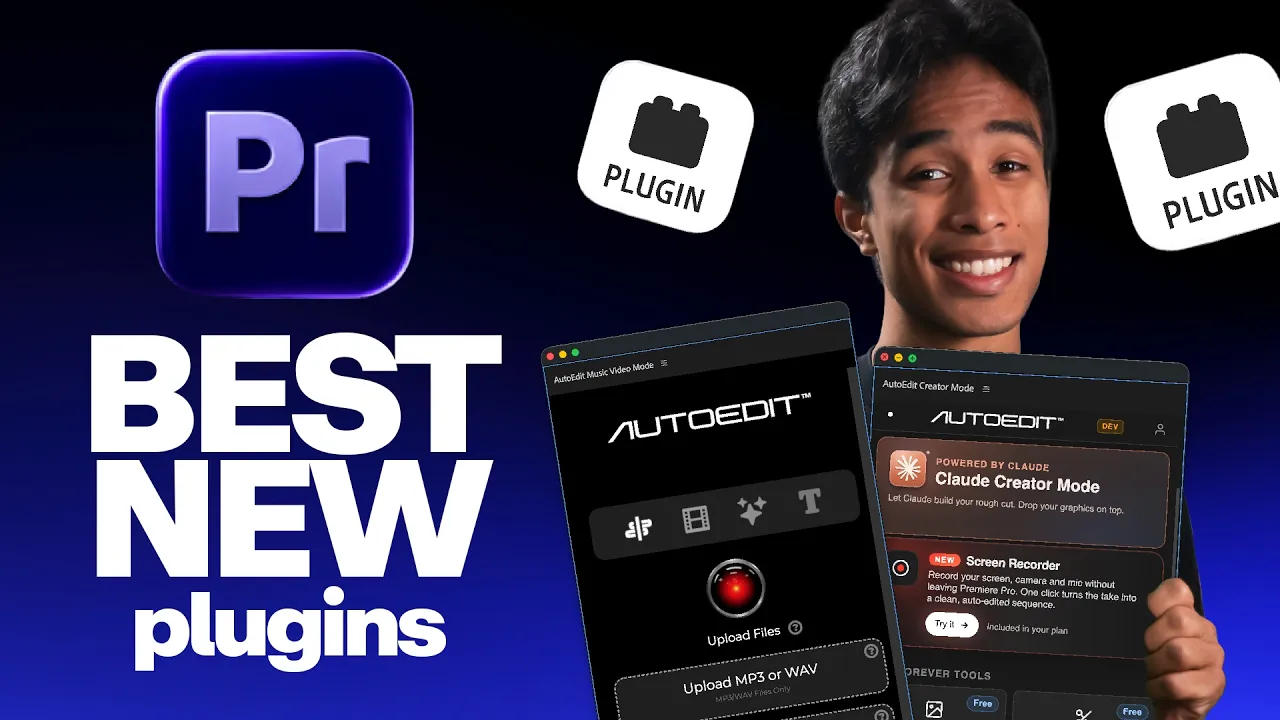
The simplest question is whether speech or the song drives the edit. Creator Mode reads spoken content and your editing brief. Music Video Mode organizes performances around the music and BPM.
Quick Answer
Choose Creator Mode for spoken YouTube videos, tutorials, podcasts, Reels, and talking heads. Choose Music Video Mode for a song, synchronized full-length performances, optional B-roll, and a beat-led music-video first cut.
Video walkthrough
I Compared 2 AI Premiere Pro Plugins (Which One Should You Use?)
Watch both plugins edit real footage
Choose Creator Mode when dialogue drives the story
Creator Mode is for YouTube videos, tutorials, TikToks, Reels, podcasts, interviews, and talking heads. It can remove silences and use Claude to review bad takes, repeated lines, filler words, and unwanted sections. The plugin also includes creator tools for motion graphics and captions.
See AutoEdit Creator ModeChoose Music Video Mode when the song drives the structure
Music Video Mode starts with a song, full-length performance takes, and optional B-roll. After the performances are synchronized, it detects or accepts the BPM, switches between performance angles, creates a beat-led first cut, and can add effects or title cards. Short performance clips can leave gaps because they do not cover the entire song.
See AutoEdit Music Video ModeThe decision in one table
| Question | Creator Mode | Music Video Mode |
|---|---|---|
| What drives the edit? | Spoken dialogue and an editing brief | Song structure, BPM, and performances |
| Best footage | Talking heads, interviews, podcasts, tutorials | Full-length artist performances plus B-roll |
| First result | Transcript-led editable first cut | Beat-led editable music-video first cut |
| Still needs an editor? | Yes | Yes |
What happens when you choose the wrong mode?
Creator Mode is not meant to discover the visual rhythm of silent performance footage. Music Video Mode is not meant to understand which repeated spoken take explains an idea better. Match the plugin to the source structure, then judge it by the quality and correction time of the editable result.
Tips
- Use a duplicate sequence for the first test.
- Review every generated cut, caption, mask, or effect in context.
- Save the version that worked before trying another pass.
Common mistakes
- Treating the demonstration as a promise that every clip will produce the same result.
- Skipping the full timeline review after an automatic pass.
- Applying a template without changing it for the creator, artist, event, or client.
Try the workflow
Free tools for this article
Use the most relevant free tool for the task, then continue with the rest of your edit.
 Free Podcast Name GeneratorGenerate podcast-name directions that fit the topic, host, and audience.Free Podcast Show Notes GeneratorTurn a podcast transcript into structured show notes, takeaways, and chapter ideas.
Continue in Premiere Pro
Find the Right AutoEdit Plugin
Build an editable starting point, then keep creative control of the timeline.
Find the Right AutoEdit PluginFrequently asked questions
Which AutoEdit plugin is best for YouTube videos?
Creator Mode is the intended fit when spoken content drives the edit.
Which AutoEdit plugin is best for performance-based music videos?
Music Video Mode is built for a song, synchronized full-length performance takes, optional B-roll, and beat-led cutting.
Sources and verification
External product claims were checked against these first-party sources.
I Compared 2 AI Premiere Pro Plugins (Which One Should You Use?) is Devin Huynh’s original tutorial and the factual source for this article.
Compare AutoEdit modes is the tracked product or free-resource page used in this guide.


