
How to Build Readable 9:16 Reel Captions in Premiere Pro
A straight Premiere Pro tutorial for Instagram Reels editors dealing with captions colliding with mobile interface overlays, with the exact setup, what the plugin does, and what you still need to check.

How to Build Readable 9:16 Reel Captions in Premiere Pro
AI-assisted workflows inside Premiere ProIf you are dealing with captions colliding with mobile interface overlays, you probably do not need another AI chat giving you edit notes. You need something that can use Premiere Pro and put an actual cut on the timeline.
Claude is like the handyman; Premiere Pro has the tools. AutoEdit brings Claude into Premiere, so it can handle the boring setup and give you something to edit instead of an empty timeline.
September 2026 update: the free Premiere Pro preset walkthrough below demonstrates current text, motion, and editing assets. Treat presets as reusable starting points, then adjust timing and styling for this workflow.
Quick Answer
AutoEdit Creator Mode is a Premiere Pro AI editing plugin that helps Instagram Reels editors deal with captions colliding with mobile interface overlays. Use Caption styling controls to get vertical captions that remain readable in the safe area, then watch the cut and change anything you do not like. It gives you a rough draft; you still finish the edit.
Who should use this?
This is for Instagram Reels editors who are tired of captions colliding with mobile interface overlays. The plugin helps you get vertical captions that remain readable in the safe area without leaving Premiere Pro.
It is a starting point, not the final edit. You still choose the best takes, change the pacing, add B-roll, clean up the sound, color the footage, and make the creative calls.
Set up the timeline first
- Set the sequence to 9:16 before styling.
- Use a font size that survives phone playback.
- Keep important words away from bottom and side interface zones.
How to use Caption styling controls in Premiere Pro
1. Duplicate the sequence
Keep the raw assembly untouched so you can compare the new cut or bring a shot back.
2. Open Creator Mode
In Premiere Pro, open Window, choose Extensions, and select AutoEdit Creator Mode as shown in the tutorial.
3. Run Caption styling controls
Use it for captions colliding with mobile interface overlays. Do one job first so you can see exactly what changed on the timeline.
4. Watch the cut
Check the takes, the sentence, the timing, and any linked clips. Put back anything the edit needs.
5. Finish the video
Now do the editor part: pacing, B-roll, graphics, music, sound, color, revisions, and export.
What should you check after it runs?
- Two-line captions becoming too tall
- Low contrast over bright footage
- Platform buttons covering the final line
Does the caption workflow work for 9:16?
The styling controls can be used for a vertical sequence, but layout still needs a phone-sized review. Set the sequence dimensions first, then check line length, safe zones, and caption position against the target platform interface.
What do you still have to edit?
AutoEdit does not pick every best take, nail every pause, finish the color, mix the sound, or handle client revisions for you. It does the repetitive setup so you can spend more time actually editing.
Watch the whole sequence before you export. The point is to get a useful rough cut on the timeline faster, not to skip the editor.
Try it on one real section
Follow the tutorial below, download Creator Mode, and run it on a duplicate of one real section from your video. If the first rough draft saves you time, use the same setup on the rest of the cut.
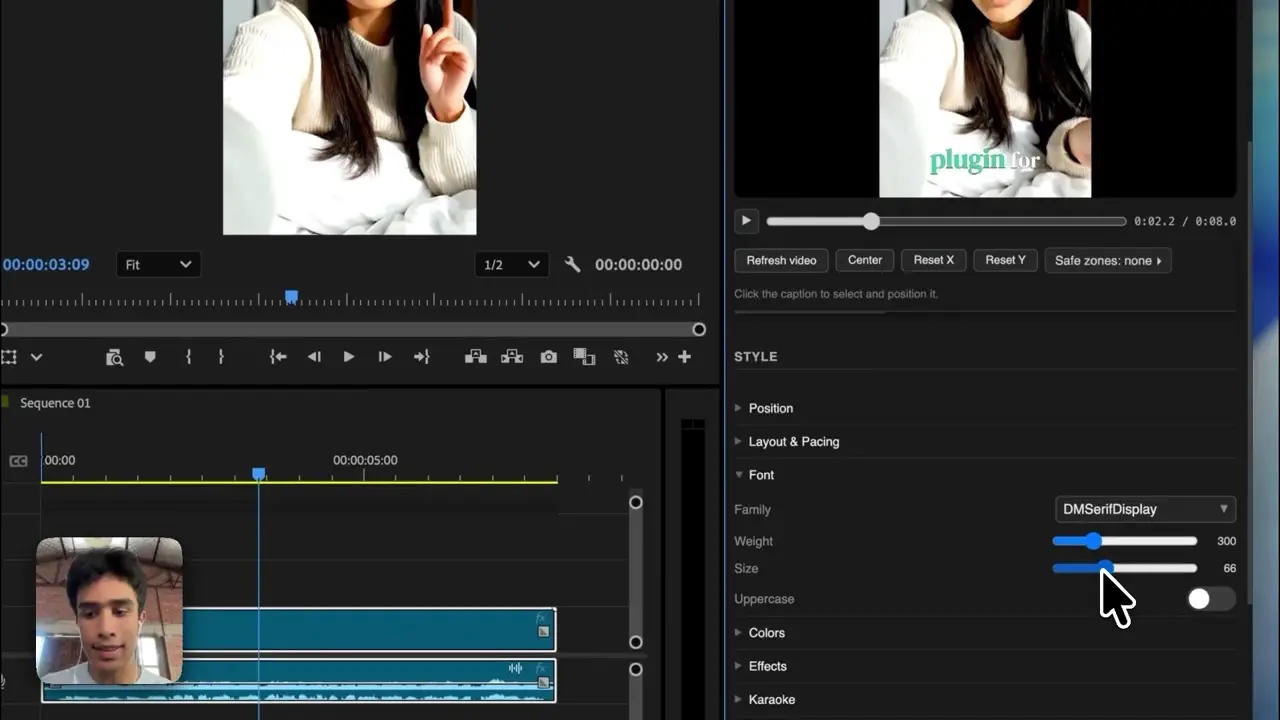
Tips
- Start with one minute of real footage.
- Keep the new cut on a clearly named duplicate sequence.
- Watch every important cut at normal speed.
Common mistakes
- Running every tool before checking the first cut.
- Assuming a transcript can judge the visual take for you.
- Exporting without watching the whole video.
Try the workflow
Free tools for this article
Use the most relevant free tool for the task, then continue with the rest of your edit.
Video walkthrough
Free Animated Captions Tutorial for Premiere Pro
90+ Free Premiere Pro Presets and Text Animations
Continue in Premiere Pro
Explore AutoEdit Creator Mode
Build an editable starting point, then keep creative control of the timeline.
Explore AutoEdit Creator ModeFrequently asked questions
Can AutoEdit handle captions colliding with mobile interface overlays?
Yes. Creator Mode can make the first cut for captions colliding with mobile interface overlays and put it on an editable Premiere Pro timeline. Watch the result, change the takes or timing you do not like, and finish the video normally.
Does the caption workflow work for 9:16?
The styling controls can be used for a vertical sequence, but layout still needs a phone-sized review. Set the sequence dimensions first, then check line length, safe zones, and caption position against the target platform interface.
Should I run AutoEdit on my original Premiere Pro sequence?
Use a duplicate sequence. A separate automated version makes it easy to compare changes, restore a missed line, and keep the untouched assembly available.
Does AutoEdit replace a video editor?
No. AutoEdit handles repetitive setup and gives you a rough cut. You still make the creative decisions, deal with revisions, color the footage, finish the sound, and deliver the video.
Where can I download AutoEdit Creator Mode?
Creator Mode and its current download options are available on the official AutoEditAI.net download page. Verify current plans and compatibility there before starting a deadline-sensitive project.
Sources and verification
External product claims were checked against these first-party sources.
Free Animated Captions Tutorial for Premiere Pro shows the AutoEdit feature and Premiere Pro sequence used in this guide.
AutoEdit Creator Mode provides the current Creator Mode download and product details.
Adobe Premiere Pro Text-Based Editing documents Adobe’s native transcript-based editing features.