
How to Edit Your Own Music Video in Premiere Pro With AI
A step-by-step music video editing tutorial for independent artists working with a song, performance takes, B-roll, beat cuts, effects, and an editable Premiere Pro rough cut.

How to Edit Your Own Music Video in Premiere Pro With AI
AI-assisted workflows inside Premiere ProThis guide is for an independent artist, rapper, musician, or new director editing footage that was actually shot. It is not about generating a fake music video from a text prompt.
The goal is to turn an empty timeline, one song, several performance takes, and a pile of B-roll into a first draft you can shape into your own video.
Quick Answer
To edit your own music video, import the master song, sync every full performance take, sort the B-roll, find the BPM, and build a beat-based rough cut. AutoEdit Music Video Mode can handle much of that first assembly inside Premiere Pro. You then choose the pacing, transitions, VFX, titles, color, and final performance moments.
Is Premiere Pro good music video editing software?
Yes. Premiere Pro gives you multicamera timelines, audio syncing, markers, effects, masks, titles, color tools, and detailed control over every cut. AutoEdit Music Video Mode adds a faster starting point for syncing takes, finding the beat, selecting B-roll, and building the first assembly.
What should you prepare before the edit?
- The final master song
- Full performance takes that use the same song
- B-roll grouped by location, setup, or look
- A Premiere Pro sequence with the intended frame size
- Notes for must-use shots, hooks, titles, and clean versions
How to edit your own music video step by step
1. Import the song and footage
Put the master song, performance takes, and B-roll into clearly named bins.
2. Sync the performance takes
Line each full take up with the master song so every lyric and movement lands at the correct time.
3. Find the BPM and beat grid
Use the song tempo to place useful beat markers instead of cutting at random.
4. Build the performance cut
Choose strong moments across the synced takes while keeping lip sync intact.
5. Add B-roll
Use B-roll to change location, add detail, hide weak joins, or create a visual reset.
6. Add transitions and effects
Place music video effects where the song or performance earns them, not on every cut.
7. Finish the video
Adjust pace, titles, sound effects, color, cleanup, and export settings after watching the whole rough cut.
What does AutoEdit Music Video Mode do?
Music Video Mode can help sync full performance takes, detect BPM, build beat-based cuts, create B-roll selects, place effect starting points, and return an editable Premiere Pro timeline.
It does not decide the artist’s identity or replace the director. You still choose the hero shots, when to hold on a face, when to break the beat pattern, and how the final video should feel.
Should every music video cut land on the beat?
No. Beat sync gives the edit structure, but cutting on every beat quickly becomes predictable. Hold important performance moments, cut early when the motion leads, and save faster patterns for parts of the song that actually increase in energy.
How should you use music video effects and transitions?
Start with a clean performance cut. Add transitions, flashes, overlays, speed changes, and VFX only after the shots already work. Effects can strengthen a drop or hide a planned transition, but they cannot rescue random footage or weak timing.
Can editing your own music video save money?
Yes, especially when you can organize the footage and build the first draft yourself. Leave room in the budget for anything you cannot safely finish, such as advanced VFX, cleanup, sound work, or a final color pass.
Tips
- Sync every performance take before choosing angles.
- Build a clean cut before adding VFX.
- Use B-roll for a reason, not just because a clip looks cool.
Common mistakes
- Trying to fix weak shot choices with effects.
- Cutting on every beat for the entire song.
- Coloring individual shots before the rough cut is stable.
Try the workflow
Free tools for this article
Use the most relevant free tool for the task, then continue with the rest of your edit.
 Free YouTube Shorts Title GeneratorGenerate short, clear titles for vertical clips without turning every idea into clickbait.
Video walkthrough
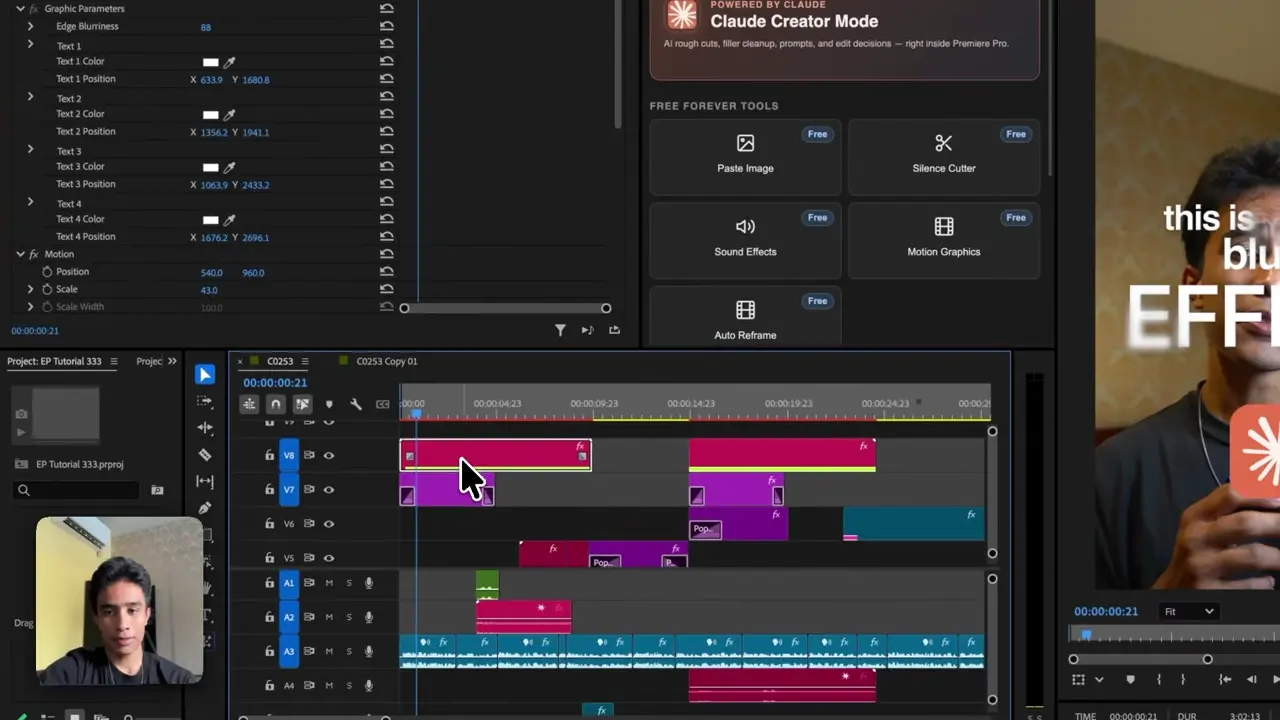
How to Edit Videos With a Designer Style in Premiere Pro
Continue in Premiere Pro
Get AutoEdit Music Video Mode
Music Video Mode is an add-on inside AutoEdit. Download the plugin, then unlock the mode with a one-time purchase in the plugin.
Get AutoEdit Music Video ModeFrequently asked questions
How do I edit my own music video?
Sync the performance takes to the master song, organize B-roll, mark the beat, build a performance rough cut, then add B-roll, effects, titles, sound, and color.
Can AI edit a music video in Premiere Pro?
AI can help build the first draft. AutoEdit Music Video Mode can sync takes, detect BPM, make beat-based cuts, and add B-roll or effect starting points on an editable timeline.
How do you automatically cut to the beat in Premiere Pro?
Use BPM or beat detection to create a beat grid, then build a first cut from those markers. Review the pattern and keep longer shots where the performance needs room.
What is the best music video editing software for an independent artist?
Premiere Pro is a strong choice when you want full control of real performance footage, B-roll, effects, titles, sound, and color in one project.
Is an AI music video editor the same as an AI music video generator?
No. An editor works with footage you shot. A generator creates new visuals from a prompt or song. AutoEdit Music Video Mode edits existing footage inside Premiere Pro.
Sources and verification
External product claims were checked against these first-party sources.
AutoEdit Music Video Mode covers the performance syncing, BPM, B-roll, and rough-cut features described above.
AutoEdit Premiere Pro visual editing tutorial shows a layered visual edit and AutoEdit tools inside Premiere Pro.
AutoEdit organic search research is the supporting AutoEdit article library for related music-video topics.